

You land in a new country. Your travel eSIM is installed. Everything looks fine. But your phone has no internet.
So you Google “should data roaming be on or off.” Every result says turn it OFF.
You switch it off. Still nothing.
And honestly? The should data roaming be on or off question is the most-searched eSIM topic. And for good reason. Here’s what most people miss: that advice was written for a completely different situation. It was meant to protect you from your home carrier’s fees. Nothing more. But you’re not using your home carrier. You’ve got a travel eSIM. And that changes everything.
With a travel eSIM, data roaming must be ON. Not off. On. That single toggle on the wrong line is why your eSIM isn’t working. This guide fixes that. It covers iPhones, Android phones, every error message, and every scenario. So you’ll never lose internet abroad again.
SECTION 1: The Counterintuitive Truth About Data Roaming and eSIM
Honestly, roaming has a terrible reputation. For years, it meant one thing — a horror story bill at the end of your trip. Your home carrier quietly connecting to foreign towers and charging you $10 per megabyte.
So travelers learned — fast — to turn data roaming off the moment they landed. And that habit made perfect sense. But times have changed. It was built for a world without travel eSIMs.
Here’s how a travel eSIM actually works. When you buy one, you get access to a local carrier’s network. That network is in your destination country. Your phone connects by roaming on it. And that’s fine. That’s literally what roaming means.
So if you turn data roaming off completely, you’ve blocked your phone. You’ve told it: don’t connect abroad. Your travel eSIM then has nowhere to go. No service. No internet. Nothing.
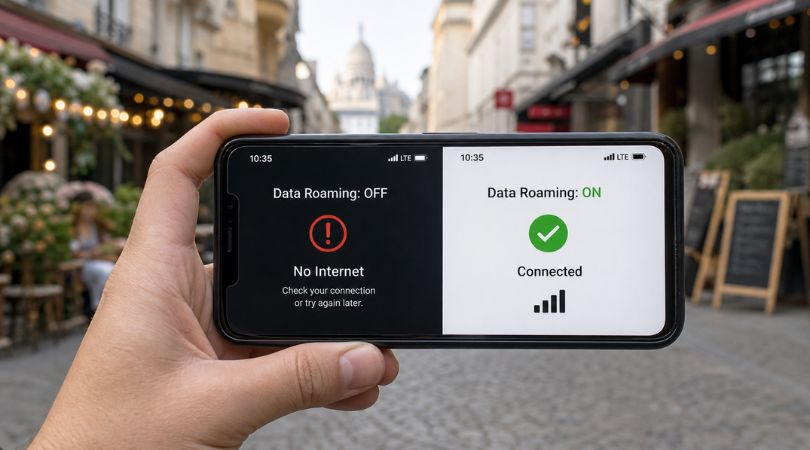
The fix is simple. Data roaming OFF on your home SIM line. Data roaming ON on your travel eSIM line. Get those two settings right and you’ll never face an eSIM not working situation abroad again.
SECTION 2: iPhone eSIM Data Roaming Settings — Step by Step
Sounds counterintuitive, right? Let’s make it concrete with exact steps for iPhone users.
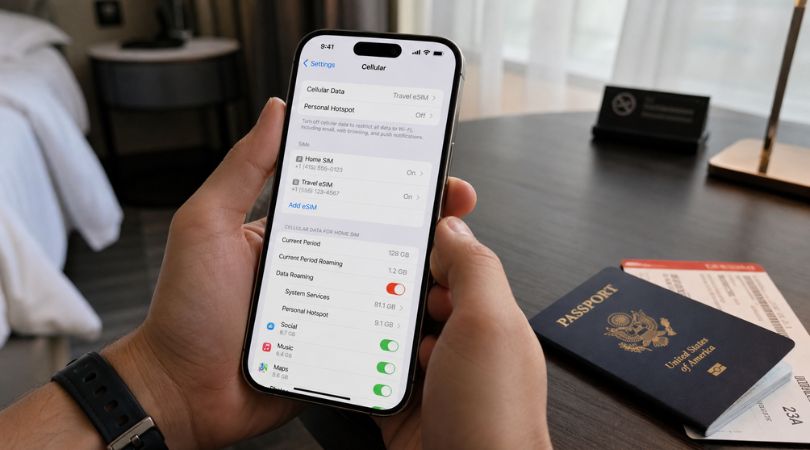
First, open Settings on your iPhone. Tap Cellular — some older iOS versions call it Mobile Data. You’ll see your SIM lines listed. There should be two: your home SIM and your travel eSIM.
Start with your home SIM first. Then scroll down and switch Data Roaming to OFF. Your home carrier won’t touch a single byte of foreign data.
Now go back and tap your travel eSIM line. This is the key step. Switch Data Roaming to ON. You’ll find your preferred data line option near the top. Check it’s set to your travel eSIM correctly.
One more thing before you close Settings. There’s a sneaky feature on iPhones called Allow Cellular Data Switching. It quietly swaps to your home SIM for data when eSIM signal drops. That can trigger roaming charges. Turn it OFF right now.
Finally, restart your phone. Your travel eSIM data roaming should kick in within 30 seconds. If it doesn’t, jump to Section 7 on APN settings.
SECTION 3: Android and Samsung eSIM Data Roaming Settings
On Android, the path to your eSIM data roaming settings is slightly different. But the logic is identical.
For Samsung users: open Settings, then tap Connections, then SIM Manager. You’ll see both SIM lines listed. Tap your home SIM first and toggle Data Roaming to OFF. Then tap your travel eSIM, toggle Data Roaming to ON. Set it as your preferred data SIM.
For Google Pixel users: go to Settings, then Network and Internet, then SIMs. Same toggles, slightly different location.
One thing many Android users miss: go into Mobile Network settings for your eSIM line. Do this right after enabling data roaming. Set Network Mode to 4G/LTE/3G/2G auto. Without this, your phone sometimes connects to the network but gets no actual data through. It looks connected. But it isn’t. That’s the frustrating part.
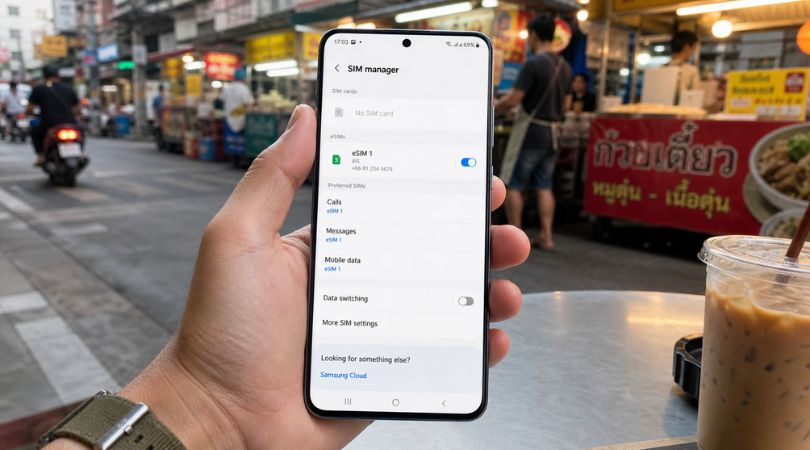
The data roaming on or off with eSIM question on Android trips up many people. The menu is just buried deeper than on iPhone. Now you know exactly where to find it.
SECTION 4: Why Your eSIM Shows "No Service" or "SOS Only"
When you first see No Service on your screen, panic sets in. Your instinct says: the eSIM is broken. It arrived faulty. I need to contact support.
Almost never. In most cases, your travel eSIM data roaming settings are simply still turned off. Your phone can see the foreign network. It just can’t register on it. That’s because you’ve told it not to roam. Enable data roaming on your eSIM line and watch the signal bars appear within seconds.
SOS Only is a variation of the same problem. It means your phone found the emergency network. But it didn’t register for data. That too is the data roaming toggle pointing the wrong way.
Before calling anyone, run through this quick checklist. First, confirm data roaming is ON for your eSIM line. Second, confirm your home SIM data roaming is OFF. Third, toggle airplane mode on for 30 seconds. Then turn it back off — this forces your phone to re-register. Fourth, restart the device completely if the problem persists.

In rare cases though, an eSIM showing no service points to a corrupted install. But try the data roaming fix first. It solves more than 80% of these cases without any extra steps.
SECTION 5: The Silent Data Drain Nobody Warns You About
Here’s a scenario that catches even experienced travelers off guard. You did everything right. You turned off data roaming on your home SIM. But three days into your trip, your carrier sends a $90 bill notification.
Background apps — that’s what happened. iCloud syncs your photos the moment you land. Gmail fetches new emails. WhatsApp downloads voice messages. Instagram refreshes your feed. If your home SIM roaming was on even briefly, those apps grabbed data silently. Even two minutes counts.
So after you’ve fixed your travel eSIM data roaming settings, take one extra step. Turn off background app refresh entirely while traveling. Also, go to Settings then Cellular on iPhone. Check that your home SIM shows zero recent data usage. On Android, go to Settings, Connections, Data Usage, and filter by your home SIM. Any activity means roaming is still partially active.
Your photos will sync later when you’re back on Wi-Fi. Your emails load when you check them. This small habit saves hundreds of dollars per trip.
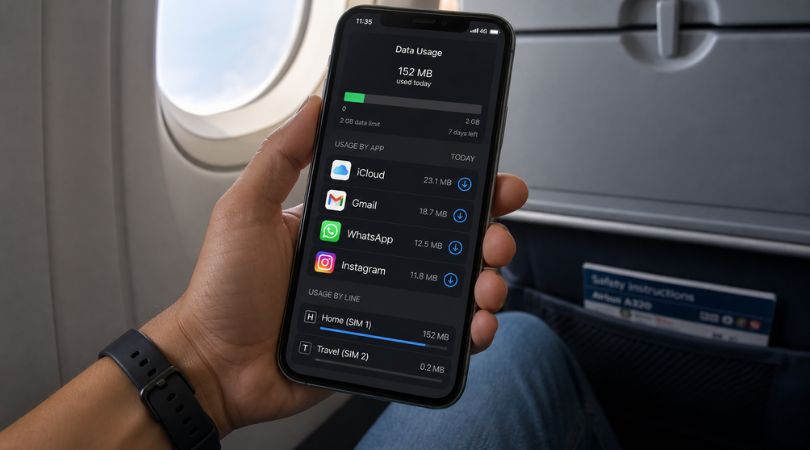
That’s the part most guides skip. The data roaming on or off with eSIM answer isn’t just about the toggle. It’s about checking the evidence too. And that will save you real money.
SECTION 6: The Dual SIM Strategy — Get the Best of Both Worlds
Once you understand travel eSIM data roaming properly, a smart setup becomes obvious. Most travelers never get there.
So keep your home SIM active for calls and SMS only. Your home number stays live for calls and SMS. That means bank OTPs, family calls, WhatsApp — all still work. Calls and SMS don’t need data roaming on at all.
Meanwhile, your travel eSIM handles all your internet with data roaming turned on. And you get local speeds at local prices. On average, that’s 70–90% cheaper than your home carrier’s international roaming rates.
iPhones from the XS onwards support this dual-line setup natively. Samsung Galaxy phones since 2019 do too. And no extra hardware needed. Just two lines. Two jobs. Running at the same time.
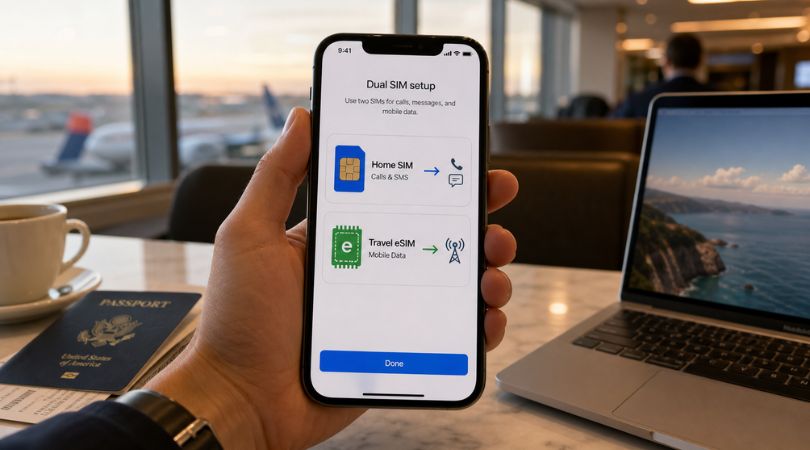
That’s really the ideal answer to the should data roaming be on or off question. It’s not a simple yes or no. It’s both — on the right lines, for the right reasons.
SECTION 7: When eSIM Data Roaming Is On But You Still Have No Internet
You’ve done everything right. Data roaming is on for your eSIM. It’s off for your home SIM. But your phone still shows no internet.
This usually points to an APN problem.
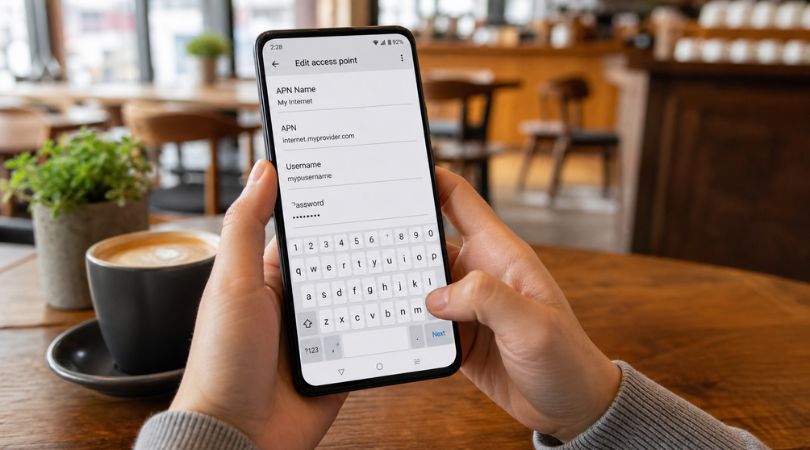
So, APN stands for Access Point Name. It’s the address your phone uses to reach the internet. Think of it as your eSIM’s gateway. Most travel eSIMs push the APN automatically when you install the profile. But some older Android devices don’t pick it up, and you need to enter it manually.
On Android, go to Settings, then Connections, then Mobile Networks, then Access Point Names. If you don’t see an entry that matches your travel eSIM provider, add one. Your provider lists APN details on their support page. Also check your purchase email.
Usually you need only three fields: APN Name, APN address, and sometimes a password. Save it. Restart your phone. Your eSIM data roaming should now connect cleanly.
On iPhone, APNs install automatically with the eSIM profile. So if yours still isn’t working, delete the eSIM profile and reinstall it from scratch if seller’s plan allows deletion and then reinstall. Once it reinstalls, turn Data Roaming ON right away. Don’t close Settings first.
FREQUENTLY ASKED QUESTIONS About eSIM Data Roaming
Q: Do I need to turn on data roaming for eSIM on every trip?
Yes — check it every trip. Each time you land somewhere new, check both lines. Confirm data roaming is on for your travel eSIM. Confirm it’s off for your home SIM. This habit eliminates every eSIM not working scenario.
Q: Will leaving data roaming on drain my battery?
Not meaningfully. Roaming itself doesn’t burn extra power. What does drain battery is background apps syncing data. So turn off background app refresh while abroad — that’s your real battery saver.
Q: My eSIM is installed but there's no internet — what's the first thing to check?
Go straight to your eSIM line in Settings and confirm data roaming is switched on. That single check resolves the eSIM installed but no internet problem in most cases. If it’s already on, toggle airplane mode off and on. That forces a fresh network re-registration — and clears most eSIM not working errors.
Q: Can I keep my home number active while using a travel eSIM for data?
Absolutely — that’s the dual SIM strategy from Section 6. Keep home SIM active for calls and SMS with data roaming off. Set your travel eSIM as your data line with roaming on. You get your home number and cheap local data at the same time.
Q: My eSIM shows no service even after turning data roaming on — what now?
Check APN settings as covered in Section 7. Also confirm your device is network-unlocked. Restart after every settings change. If nothing works, contact your eSIM provider’s support team — most resolve issues within minutes via chat.
SUMMARY: The Only eSIM Roaming Reference You'll Ever Need
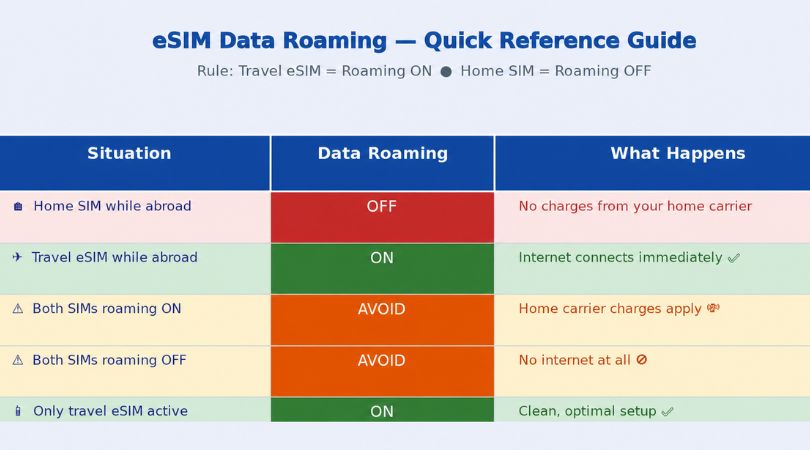
One rule covers everything. The rule is clear: data roaming on or off with eSIM means on for your eSIM. Off for your home SIM. Every time. Get that right and you’re set. The data roaming on or off with eSIM rule works every trip, every country, every device.
Stay Connected for Less — Why Smart Travelers Choose a Travel eSIM
With that sorted, the last piece of the puzzle is picking the right plan. Travel eSIMs cut your data costs by up to 90% versus your home carrier’s international roaming rates. With a travel eSIM, you get local speeds and instant digital setup. Coverage spans 150+ countries. And you never step into a phone shop.
You don’t swap physical SIM cards, don’t wait in queue at airport kiosks either and You don’t worry about locked devices or hidden charges. Just install before you fly, turn data roaming on when you land, and you’re online in seconds.
For affordable travel eSIM plans across 150+ countries, check out Hubbing Ecom. They make it simple. Away for 24 hours? They’ve got a plan. Traveling for a full month? They’ve got that too. Install digitally before departure. Switch data roaming on after landing. Then start exploring — zero connectivity stress. Visit Hubbing Ecom today and grab your travel eSIM before your next trip.
You may like similar Blogs
Travel eSIM vs Local SIM vs International Roaming: What Luxury Travelers Prefer Now
Global Travel eSIM Explained by a Telecom Professional
Complete eSIM Troubleshooting Guide — Why It’s Not Working & How to Fix It
Staying Connected: WhatsApp Calling Alternatives for International Tourists in Dubai and Workarounds
Pocket WiFi vs eSIM in Japan: Pros and Cons for Tourists
WiFi Calling vs Cellular: Which One’s Better for You?
Top eSIM Data Plans for Seafarers: Stay Connected Anywhere at Seaports
How International Data eSIMs Keep Pilots and Airline Crew Connected Across Borders
eSIM for Silent Roamers: Affordable Data Plans and Limitations
eSIM vs public WiFi vs VPN: A Comparison of Internet Access Methods
How to Use eSIM Abroad Without Missing Your Indian Bank OTP or UPI Alert
Can an eSIM and Physical SIM have the same number?
Is eSIM signal strength the same as a Physical SIM?
eSIM for Long-Term Travel: Managing Data, Expiry, and Top-Ups
eSIM for Business Travelers: Secure Data and Remote Work Tips

Leave a comment