

You just landed abroad. You open Google Maps. Nothing loads. Your travel eSIM is not working. Thousands of Indian travellers face this exact moment every single day. Fortunately, most eSIM problems are easy to fix at home. This complete eSIM troubleshooting guide covers every common issue. Follow each step carefully. You will get back online within minutes.
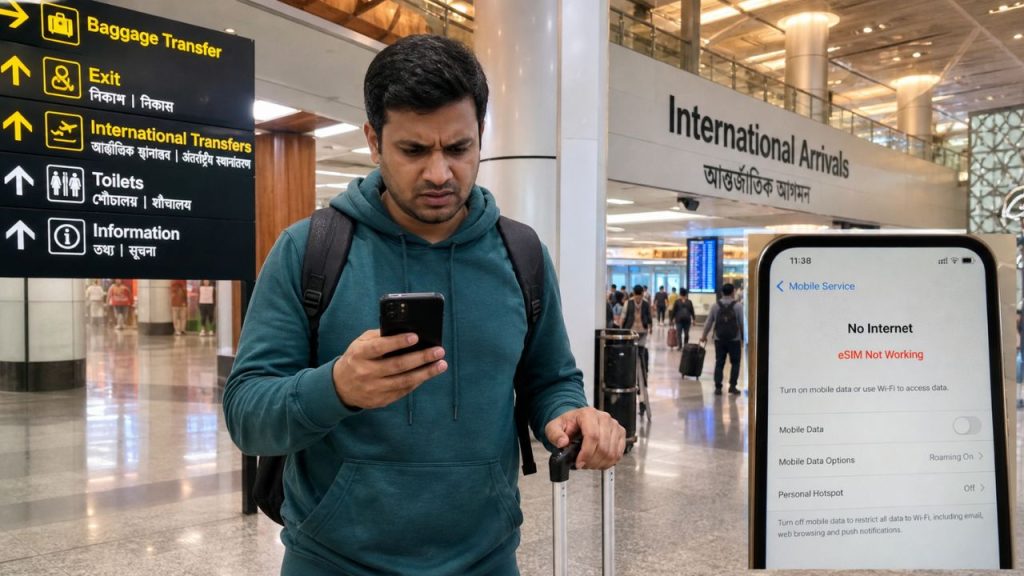
Understanding the cause saves you precious time. Most travellers blame the network or provider first. However, the real problem is almost always a wrong phone setting. Your travel eSIM not working after landing abroad usually has three root causes. Either data roaming is turned off. Or the wrong SIM line is set for mobile data. Or the eSIM activation did not finish properly before your flight.
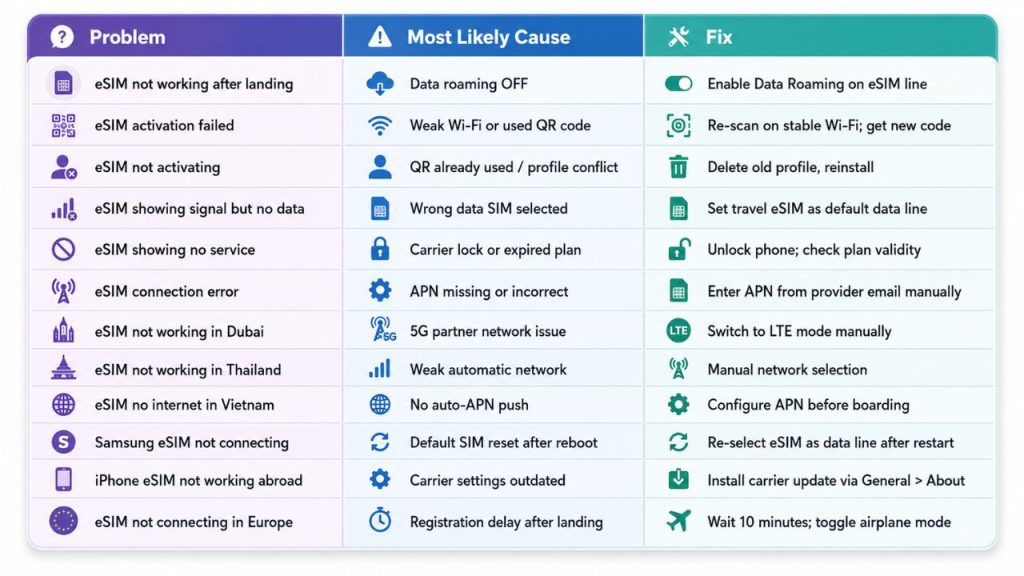
Many Indian travellers install the eSIM at home before departure. They never configure roaming settings before leaving India. Cases of Indian traveller eSIM not activating in a foreign country are more common than most people expect. So they land abroad and instantly face an eSIM connection error. Signal bars show full strength. But mobile data refuses to work. Follow the steps below. Each fix targets a specific and common cause of eSIM not working.
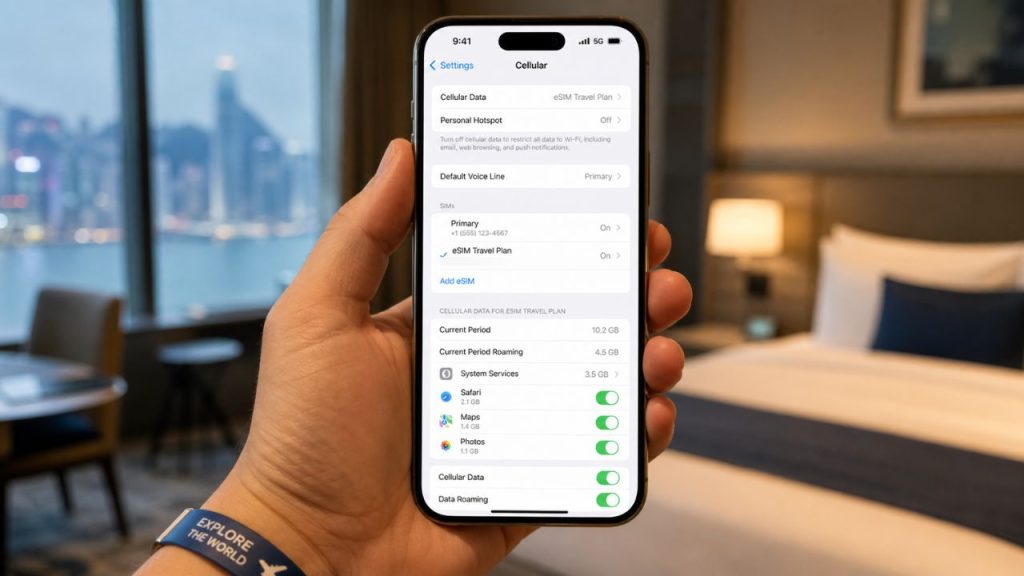
eSIM activation is always the very first thing to check. Many users scan the QR code and assume everything finished. That is a very common and costly mistake. A proper eSIM activation needs stable Wi-Fi throughout the entire setup. If your phone disconnects briefly, the profile installs but stays inactive. Therefore, always activate using strong Wi-Fi before your flight.
Go to Settings, then Cellular or Mobile Data on your phone. Your eSIM plan should appear with a clearly active status. If it shows “Not Active,” delete the profile completely. Re-scan the QR code using a fresh Wi-Fi connection. eSIM not activating also occurs when the QR code is already used on another device. Each code works only one single time. Contact your provider to get a brand new activation code.
Data roaming is the biggest overlooked cause of eSIM not working worldwide. Most travellers simply forget to enable it. When you use a dual SIM setup abroad, your phone needs clear direction. Your Indian home SIM likely has roaming blocked by your carrier. Meanwhile, your travel eSIM sits completely idle without roaming enabled.
On iPhone, go to Settings, then Cellular. Tap your travel eSIM line. Toggle Data Roaming ON. On Samsung or Android devices, go to Settings, then Connections. Then go to Mobile Networks. Select your eSIM line and switch Data Roaming ON. This single step fixes most cases of eSIM showing signal but no data while travelling abroad. Also turn Data Roaming OFF on your Indian home SIM. That avoids unexpected roaming charges from your original carrier.
Even with roaming enabled, your eSIM connection error can continue. The reason is your phone may still route all data through your home Indian SIM. You must manually change the default data line to your travel eSIM. This forces your phone to use the correct line for internet abroad.
On iPhone, go to Settings, then Cellular, then Cellular Data. Select your travel eSIM from the list. Also disable “Allow Cellular Data Switching” immediately. This setting quietly switches back to your home SIM when signal weakens. On Android, go to Settings, then Connections, then SIM Card Manager, then Mobile Data. Samsung eSIM not connecting outside India is very commonly caused by this missed step. Switch the data line, then load a webpage to test connection.
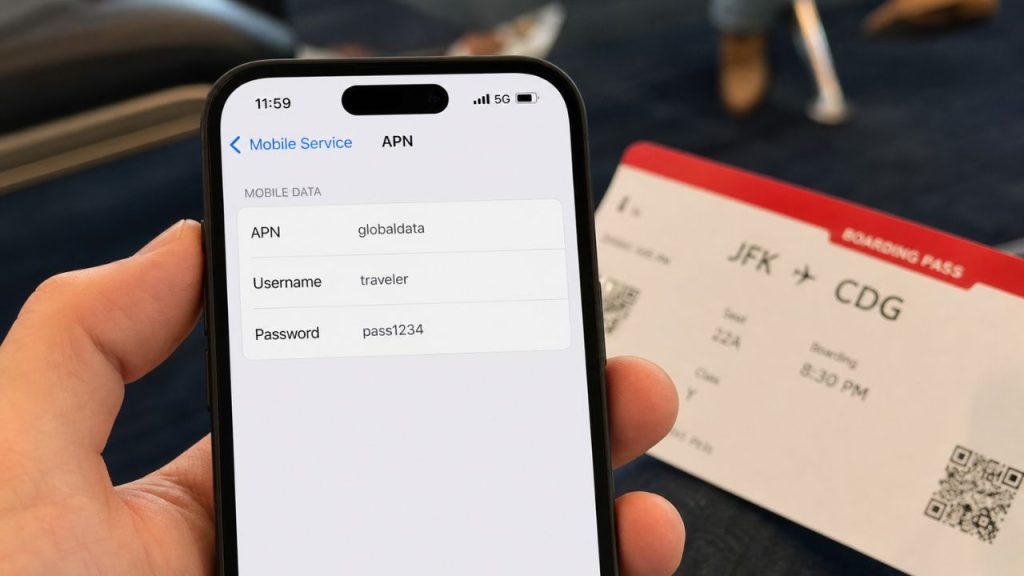
Sometimes eSIM troubleshooting needs manual APN configuration. APN means Access Point Name. It tells your phone how to reach the carrier’s data network. Most travel eSIMs configure APN automatically during installation. However, some providers require manual entry in certain countries or regions. Do it as shared by your seller, if not shared by seller better to contact their customer care for resolution.
If you see eSIM showing no service, check APN settings right away. The same applies for eSIM activated but no internet abroad. On iPhone, go to Settings, then Cellular, then tap your eSIM, then Cellular Data Network. Enter the APN that your provider shared in the welcome email. On Android, go to Mobile Networks, then Access Point Names. Add a new APN using your provider’s exact details. Incorrect APN causes eSIM no internet in Vietnam for Indian travellers most frequently. It also causes eSIM not connecting in Europe after arrival in many cases.
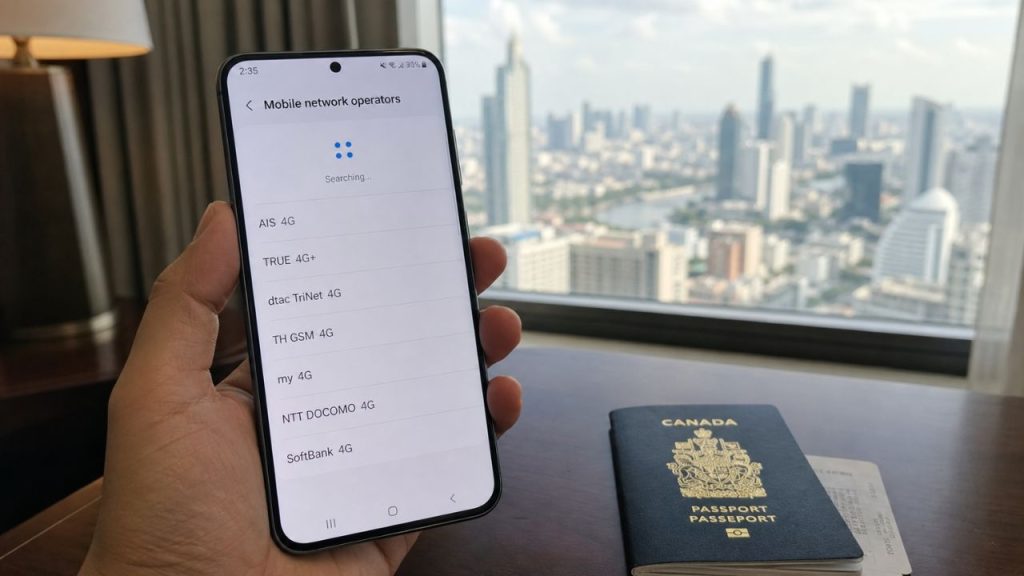
Automatic network selection does not always pick the strongest local partner network. In Thailand, Malaysia, Singapore, and the USA, automatic mode sometimes latches onto a weak carrier. Therefore, switching to manual selection gives you much better results. This approach reliably solves eSIM not working in Thailand for Indian tourists.
On iPhone, go to Settings, then Cellular. Tap your eSIM, then Network Selection. Turn off Automatic and wait for available networks. Pick one manually from the list. On Android, go to Settings, Connections, Mobile Networks, then Network Operators. Tap Search Now and pick a supported local carrier from results. This fix also works beautifully for eSIM not working in Malaysia after landing. It similarly resolves eSIM not working in Singapore for Indian users at Changi Airport.
iPhone travel eSIM not working abroad often traces to a missed carrier settings update. Apple pushes these updates quietly in the background. If your iPhone skipped one, it may fail to connect abroad properly. Go to Settings, then General, then About. Install any carrier update prompt that appears. Restart your phone after the update completes.
If that does not resolve the issue, reset your network settings next. Go to Settings, General, Transfer or Reset iPhone, then Reset. Choose Reset Network Settings. This step clears many stubborn hidden eSIM bugs instantly. Note that this erases saved Wi-Fi passwords too. So write down your hotel Wi-Fi password before doing this step. After the reset, re-enable data roaming and re-select the eSIM as your data line again.
Samsung eSIM not connecting outside India is a widely reported and well-known issue. Samsung devices frequently reset the default data SIM after each restart. After every reboot abroad, always check your travel eSIM is still selected for mobile data. This quick ten-second check saves enormous frustration on long trips.
Also, Samsung devices on 5G networks sometimes struggle with partner eSIM networks. Switch manually from 5G to LTE under Settings, Connections, Mobile Networks, then Network Mode. Select LTE or 4G only temporarily. Furthermore, disable any active VPN on your device right away. VPN apps frequently block eSIM data connections without showing any visible error message.
eSIM showing no service in another country has very specific and fixable causes. First, verify your plan is not expired. Log into your eSIM provider’s app and check your balance and expiry date. Second, confirm your destination country is listed in your eSIM plan’s coverage. Some budget eSIMs exclude certain countries or specific local partner networks.
Third, your phone might be carrier locked. A locked device blocks any travel eSIM from working abroad effectively. Contact your original Indian carrier to request a full network unlock. This issue regularly affects Indian travellers who bought phones on Jio or Airtel contracts. Once unlocked, the eSIM connection error resolves permanently and completely. Remember, a locked phone causes an eSIM connection error in every country without exception. Always check phone unlock status before international travel.
Indian travellers face unique eSIM challenges in different destinations. For eSIM not working in Dubai for Indian travellers, switch from 5G to LTE manually first. Some Dubai partner networks block automatic 5G eSIM connections. For eSIM not connecting in Europe after arrival, wait ten minutes after landing patiently. European networks take extra registration time for new eSIMs.
For travel eSIM not working in USA from India, confirm your plan covers T-Mobile or AT&T networks. For eSIM no internet in Vietnam for Indian travellers, configure APN manually before boarding. Vietnam carriers rarely push automatic APN settings for international eSIM users. These destination-specific steps eliminate the most frustrating country-level eSIM problems quickly and permanently.
Run this checklist before contacting support. It solves most eSIM troubleshooting cases very quickly. Toggle Airplane Mode ON for thirty seconds, then OFF again. Restart your phone completely after toggling. Confirm the eSIM line is turned ON in your cellular settings. Confirm Data Roaming is ON for the eSIM line specifically. Confirm the eSIM is selected as the active mobile data line.
Turn off any VPN app that is currently running on your device. Switch from 5G to LTE mode inside your network settings. Try manual network selection and choose a different local carrier manually. Check the APN settings match your provider’s official instructions exactly. Log into your provider app and verify your data balance is not empty. This checklist reliably solves international travel eSIM not connecting after arrival in most cases.
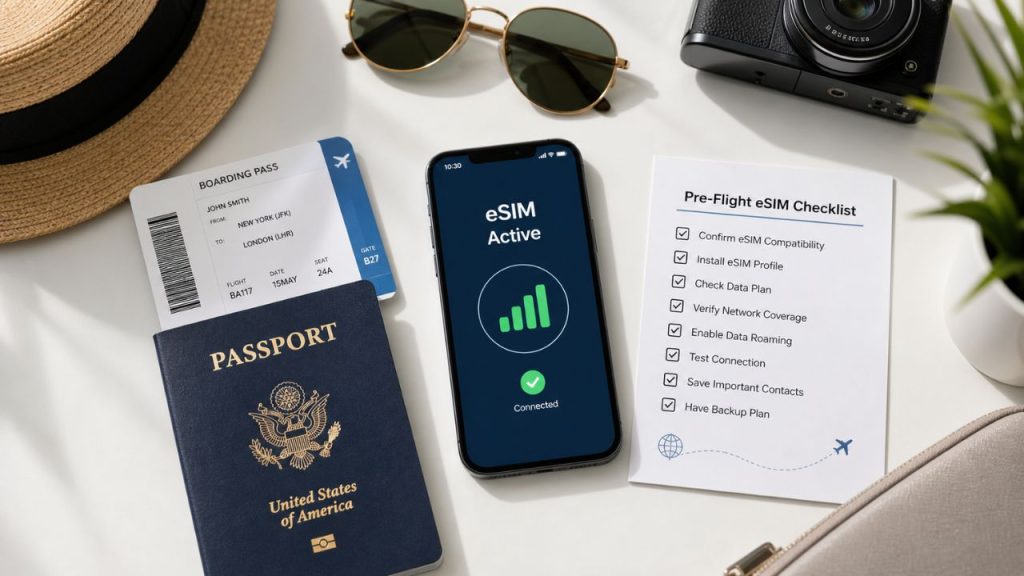
Prevention is always better than fixing issues abroad. Most eSIM not working situations happen because travellers skip pre-flight preparation. So take five minutes at home before you leave. Open your phone settings on reliable home Wi-Fi. Complete eSIM activation fully and confirm it shows “active.” Turn Data Roaming ON for the travel eSIM line immediately.
Set your travel eSIM as the default mobile data line. Turn Data Roaming OFF on your home Indian SIM. Save your eSIM provider’s support contact. Note down your APN details from the provider email. Doing all of this at home prevents eSIM not activating in a foreign country entirely. eSIM not activating issues drop to zero when you prepare properly.
Many eSIM troubleshooting issues trace back to a few repeat mistakes. Knowing them helps you avoid the same traps. First, never install an eSIM on inflight mode during your flight. That blocks the activation server. Always complete eSIM activation before boarding. Second, never use a VPN during initial eSIM setup or activation.
Third, some travellers buy eSIM plans but never check country coverage carefully. Then they face eSIM showing no service in another country and wonder why. Always read the coverage list on the provider’s website before purchasing. Fourth, many travellers forget to disable “Allow Cellular Data Switching” on iPhone. This setting actively interferes with eSIM performance abroad. Turn it OFF every single trip.
Why is my eSIM showing signal but no data while travelling abroad?
This happens because your phone shows the eSIM carrier’s signal. But data roaming is turned off, blocking internet traffic. Turn Data Roaming ON for your eSIM line to fix it.
Why is my eSIM not activating in a foreign country?
The server connection may have failed during setup. Re-activate using hotel Wi-Fi and confirm the QR code is still valid. Contact your provider if the code is expired or already used once before.
Why does my iPhone show “No Service” with a travel eSIM?
The most likely cause is a carrier settings update that your iPhone missed. Go to General, then About, and install any available carrier update. Also try manual network selection to force a fresh connection immediately.

The smartest move is choosing a reliable travel eSIM before your next trip begins. Hubbing Ecom offers affordable eSIM plans built specifically for Indian globetrotters. Their plans cover 100+ countries including Thailand, Dubai, Malaysia, Singapore, Vietnam, Europe, and the USA. You get genuine high-speed data with zero hidden fees and no plastic SIM card to wait for.
Wondering how to fix eSIM no internet while travelling abroad permanently? Simply buy a trusted eSIM from Hubbing Ecom and set it up at home on strong Wi-Fi. Activate it before your flight, configure data roaming, and you land abroad data-ready instantly. Their plans are affordable, easy to activate, and supported by a helpful team. Visit Hubbing Ecom today and never troubleshoot eSIM abroad again.
Overall Summary📊
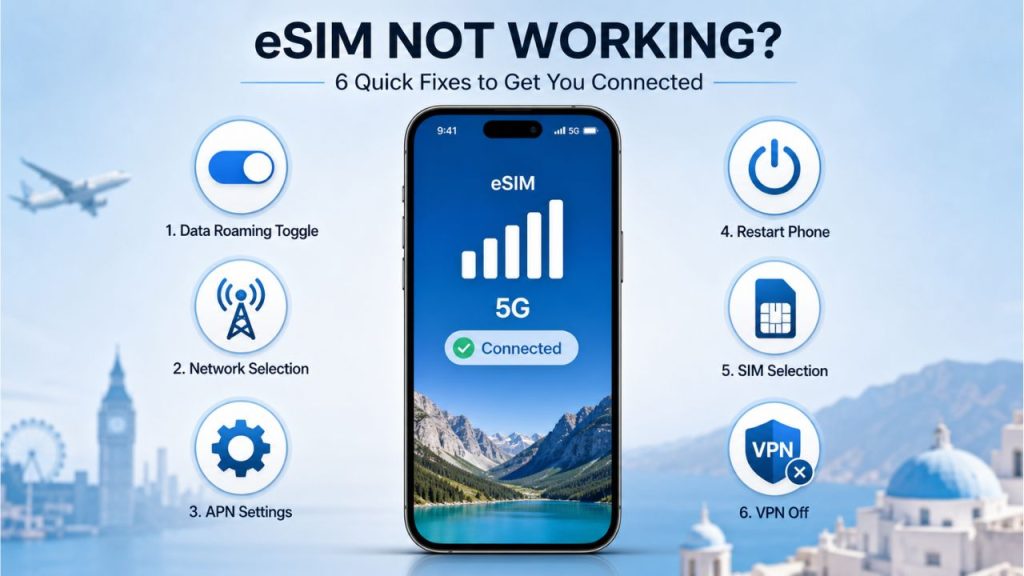
This guide covers the complete journey of diagnosing and fixing eSIM problems for Indian travellers. The most common causes of eSIM not working are data roaming being off, the wrong SIM set as the data line, incorrect APN settings, and missed carrier updates. The guide addresses both iPhone and Samsung/Android devices and provides country-specific tips for Thailand, Dubai, Malaysia, Singapore, Vietnam, Europe, and the USA.
You may like reading similar Blogs
How Much eSIM Data Do I Really Need? A Calculator for Every Type of Traveler
How to check eSIM Data usage on iPhone?
Why you should use eSIM and Wi-Fi Map in conjunction? On your international trip..
12 Factors That Effect Your Data Speed On Foreign Trip
eSIM vs public WiFi vs VPN: A Comparison of Internet Access Methods
Can i change the APN Settings?
Can an eSIM and Physical SIM have the same number?
Is eSIM signal strength the same as a Physical SIM?
Pocket WiFi vs eSIM in Japan: Pros and Cons for Tourists
WiFi Calling vs Cellular: Which One’s Better for You?
Top eSIM Data Plans for Seafarers: Stay Connected Anywhere at Seaports
How International Data eSIMs Keep Pilots and Airline Crew Connected Across Borders
eSIM for Silent Roamers: Affordable Data Plans and Limitations
How to Use eSIM Abroad Without Missing Your Indian Bank OTP or UPI Alert
Should Data Roaming Be ON or OFF With a Travel eSIM? (The Answer Is Counterintuitive)
Travel eSIM vs Local SIM vs International Roaming: What Luxury Travelers Prefer Now
Affordable eSIM for Singapore: Safe High‑Speed Data for International Tourists
eSIM for Long-Term Travel: Managing Data, Expiry, and Top-Ups
eSIM for Business Travelers: Secure Data and Remote Work Tips
Subscribe to our YouTube channel and follow us on Instagram for more updates.


Leave a comment