

Your phone opens maps, yet your laptop refuses to load anything. If you face eSIM hotspot not working, start with simple checks before changing settings. This guide explains eSIM tethering not working abroad, including iPhone controls, Android settings, laptop connections, and restrictions.
First, turn off your phone’s Wi-Fi and open a fresh webpage using mobile data. Samsung recommends confirming working mobile data before troubleshooting tethering. (Samsung) If that test fails, investigate your mobile connection first. Otherwise, focus on hotspot settings rather than repeatedly reinstalling your eSIM.
Next, select your travel line for mobile data through SIM settings. Apple lets dual-SIM users choose their data line under Settings > Cellular > Cellular Data. (Apple) Also, enable travel-line roaming when your supplied instructions require it. (Hubbing Ecom) Keep home-line roaming off unless you intend to use it.
However, travel eSIM hotspot not working can reflect plan restrictions rather than faulty hardware. Google warns that carriers can limit tethering. (Google) Therefore, check your allowance, validity, destination coverage, and hotspot terms. Hubbing Ecom also makes hotspot availability dependent on the plan, network, and device. (Hubbing Ecom)
First, open Settings > Personal Hotspot and enable Allow Others to Join. (Apple) Then, keep that screen open while your laptop joins. (Apple) For eSIM hotspot not working on iPhone, confirm the displayed network name and password. Apple recommends checking both before trying further troubleshooting steps. (Apple)
Next, restart both devices and install available iOS updates using reliable Wi-Fi. (Apple) On supported devices, try Maximize Compatibility when nearby computers cannot connect. (Apple) However, Apple warns this option can reduce performance and Wi-Fi security. (Apple) Therefore, use it as a compatibility test, not a speed upgrade.
Meanwhile, investigate eSIM hotspot not working on iPhone with missing sharing controls. Apple says your carrier must enable hotspot and your plan must support it. (Apple) Therefore, ask whether your selected travel package includes tethering. Avoid buying another package until support confirms the actual restriction.
First, Pixel users can open Network & internet, then Hotspot & tethering, then Wi-Fi hotspot. (Google) On Samsung, open Connections, then Mobile Hotspot and Tethering. (Samsung) For eSIM hotspot not working on Android, search Settings for “hotspot” when menus differ. Samsung notes that software and carrier variations affect controls. (Samsung)
Next, turn off Data Saver before using Wi-Fi tethering on Pixel. (Google) For eSIM hotspot not working on Android, check timeout settings if sharing stops. Google documents automatic shutdown when no devices remain connected. (Google) However, reconnect one device first, so you can separate timeout behavior from continuing connection failures.
Additionally, try the 2.4 GHz band when an older laptop cannot see your hotspot. Samsung identifies broader device compatibility on that band. (Samsung) Also, disable Hidden network when available. (Samsung) Keep password protection active throughout testing instead of creating an open network in a busy public place.
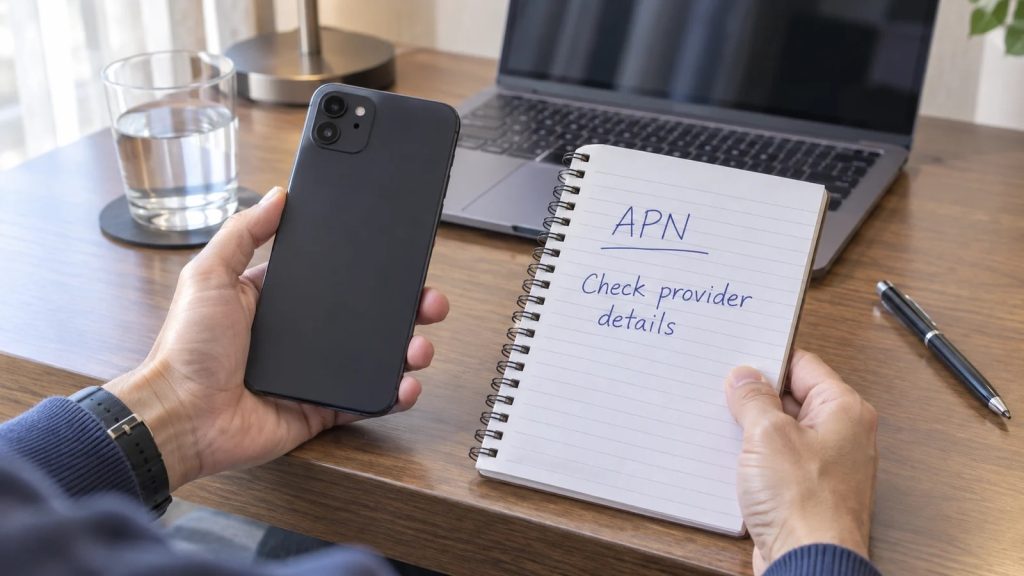
Sometimes, eSIM tethering not working needs provider guidance rather than another restart. On iPhone, open Settings > Cellular > Cellular Data Network when available. (Apple) However, your carrier controls whether you can edit those fields. (Apple) Ask support for your plan’s exact configuration before making any manual changes.
For how to set up Personal Hotspot APN for travel eSIM, request hotspot-field instructions. Apple warns that incorrect APNs can interrupt data and cause additional charges. (Apple) Likewise, for Android eSIM hotspot APN settings not working, avoid copied internet fixes. Preserve values and ask your provider what needs changing.
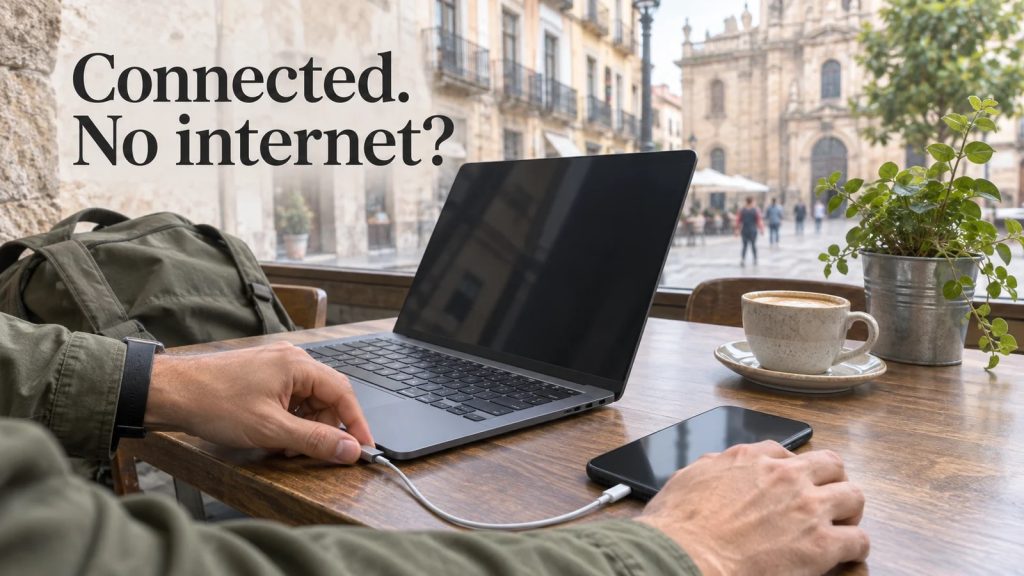
First, distinguish joining Wi-Fi from reaching the internet. For eSIM hotspot connected but no internet, compare laptop browsing with phone browsing. Then, connect another phone to the same hotspot. This simple comparison helps you decide whether to investigate one client or the shared connection.
Next, forget the hotspot on your laptop and reconnect using the current password. Also, check whether your computer quietly joins another saved network. Apple recommends confirming the correct hotspot network and restarting Wi-Fi. (Apple) If a laptop cannot connect to travel eSIM hotspot, complete those checks before changing APNs.
If your travel eSIM hotspot not showing up on laptop continues, revisit compatibility settings. Apple recommends Maximize Compatibility on supported devices. (Apple) Alternatively, Samsung suggests checking hidden-network settings and changing bands. (Samsung) Then, test again nearby with one client, rather than adjusting several unrelated settings together.

Meanwhile, briefly test without a VPN if your security policy allows it. Samsung notes VPN services can interfere with tethering. (Samsung) Restore protection afterward, especially before sensitive work. If eSIM tethering not workingpersists, record the result rather than disabling security features on your devices.
Finally, consider network resets only after saving settings and passwords. Apple’s Reset Network Settings removes saved Wi-Fi, cellular, VPN, and APN settings. (Apple) Avoid deleting your travel profile as a casual troubleshooting step. Instead, send support your device model, destination, error message, and completed test results.
In short, solve the failing connection layer before replacing anything. For travel eSIM hotspot not working, start with phone data, then sharing controls and client compatibility. Also, verify restrictions through your selected plan’s terms. Hubbing Ecom confirms that network, device, and plan conditions determine hotspot availability. (Hubbing Ecom)
Symptom | Recommended next action |
Phone cannot browse | Check selected line and plan |
Hotspot missing | Confirm provider support (Apple) |
Laptop cannot see hotspot | Test compatible band (Samsung) |
Only laptop fails | Compare another client |
All clients fail | Ask provider about tethering |
Symbaa customer | Review usage and plan conditions (Hubbing Ecom) |
How to fix eSIM hotspot not working abroad?
First, test a webpage with your phone’s Wi-Fi off. Then, confirm your travel data line, hotspot password, and plan eligibility. Apple recommends restarting both devices and checking carrier hotspot support. (Apple) Finally, compare another client before making advanced changes or asking support for help.
Why is my travel eSIM hotspot not working?
Your package might restrict tethering even when phone browsing works. Google confirms that some carriers limit sharing. (Google) However, device settings and client compatibility also deserve attention. Therefore, verify your purchased package’s hotspot terms before assuming your eSIM profile itself has developed a fault.
How to fix eSIM Personal Hotspot on iPhone?
First, enable Allow Others to Join and remain on the Personal Hotspot screen. (Apple) For eSIM hotspot not working on iPhone, restart both devices next. (Apple) Then, try Maximize Compatibility where available. (Apple) If controls remain unavailable, ask your provider whether the plan supports sharing. (Apple)
How to fix eSIM tethering not working on Android?
First, select the intended mobile-data line and enable your hotspot. For eSIM hotspot not working on Android, disable Pixel Data Saver before Wi-Fi tethering. (Google) Also, test Samsung’s compatible band options when clients cannot connect. (Samsung) Then, ask support about any continuing plan restrictions.
eSIM mobile data works but hotspot does not: why?
Phone browsing alone does not prove your package permits tethering. Google warns that carriers can restrict hotspot use. (Google) Therefore, check the package terms first. Next, compare two clients and review sharing controls. This approach separates a client-specific problem from a wider sharing failure.
eSIM hotspot connected but no internet on laptop: what next?
First, compare browsing on your phone and another connected device. For eSIM hotspot connected but no internet, note which devices fail. Then, reconnect your laptop using the correct hotspot name and password. Apple recommends checking those details and toggling the client’s Wi-Fi off and on. (Apple)
Personal Hotspot missing on iPhone with eSIM: what causes this?
First, confirm that your carrier enables Personal Hotspot for your package. Apple specifically recommends checking carrier support when the control disappears. (Apple) Therefore, contact your travel provider with the plan name and device model. Do not assume that buying more data will restore missing controls.
eSIM Personal Hotspot greyed out on iPhone: what should I check?
First, verify hotspot availability with your carrier and confirm that your plan supports it. Apple recommends those checks for unavailable controls. (Apple) Then, restart your iPhone and the receiving device. (Apple) If the control stays unavailable, share screenshots privately with support after hiding personal information.
How to check if my travel eSIM supports tethering?
First, read the exact package description rather than relying on a general destination page. Then, request written confirmation of hotspot permission and limits. Hubbing Ecom makes sharing dependent on your plan, device, and network. (Hubbing Ecom) Also, ask whether any separate hotspot allowance applies before paying.
Does a data only eSIM support hotspot abroad?
Yes, a data-only package can support sharing when its terms permit tethering. Hubbing Ecom offers data connectivity with plan-dependent hotspot availability. (Hubbing Ecom) However, do not treat “data-only” as a promise of unrestricted sharing. Therefore, verify the exact package and device requirements before relying on it.
How to share travel eSIM data with another phone?
First, enable your hotspot and choose a secure password. Then, open Wi-Fi settings on the second phone, select your network, and enter that password. Google documents this connection process. (Google) Finally, test a fresh webpage before assuming that the second phone has working internet access.
Can I use USB tethering instead?
Yes, compatible devices offer another connection method when Wi-Fi troubleshooting stalls. Apple documents iPhone USB sharing with Mac. (Apple) However, Google states that Macs cannot use Android’s standard USB tethering. (Google) Therefore, check your exact phone and computer combination before packing a cable as your only backup.
Does unlimited data guarantee unlimited hotspot?
No, the package name alone cannot establish tethering permission or limits. Google warns that carriers can restrict sharing. (Google) Therefore, when travel eSIM hotspot not working interrupts your trip, check the actual conditions. Ask support about any sharing allowance instead of assuming unlimited means unrestricted.
Can changing the APN damage my connection?
Incorrect APN entries can interrupt mobile data and potentially create additional charges, according to Apple. (Apple) Therefore, change values only with provider guidance. Also, save your original settings first. If you cannot edit the fields, contact your carrier rather than installing an unknown configuration profile.
Should I delete and reinstall the eSIM?
No, do not make deletion your first response to eSIM tethering not working. Instead, test hotspot controls, clients, and package eligibility first. Then, ask support whether reinstallation makes sense for your particular profile. Keep installation details private and arrange reliable Wi-Fi before any approved reinstall.
Can a VPN stop my hotspot working?
Yes, Samsung notes that VPN services may need disabling before tethering. (Samsung) However, follow workplace security rules before testing without protection. Then, restore your normal security configuration promptly. If your employer manages the laptop, ask its IT team before changing network settings or removing software.
Why does my hotspot keep turning itself off?
Your phone might automatically stop sharing when no devices remain connected. Google documents that behavior and its related control. (Google) Likewise, Samsung provides adjustable hotspot timeout settings. (Samsung) Therefore, check those options before assuming your connection fails whenever you pause work or close your laptop.
Can I monitor shared data through Symbaa?
Yes, Symbaa helps users review usage for supported travel services. (Hubbing Ecom) Therefore, check your remaining allowance while sharing a connection. Also, confirm which management features your selected package supports. Hubbing Ecom notes that recharge options depend on the plan, so check before running low. (Hubbing Ecom)
Can I buy a Physical Data Card instead?
Yes, Hubbing Ecom offers physical data SIM options for compatible unlocked devices. (Hubbing Ecom) However, changing format does not guarantee unrestricted hotspot access. The selected plan, network, and device still determine availability. (Hubbing Ecom) Therefore, confirm tethering terms and delivery arrangements before choosing a card for your trip.
Where can I purchase a Symbaa travel plan?
You can explore plans through the Symbaa application OR Hubbing Ecom’s website . (Hubbing Ecom) First, compare destination coverage, data, validity, and hotspot conditions. Then, choose a package matching your devices and itinerary. Also, keep your order details handy if support needs to investigate a connection problem.
You may like reading similar Blogs
Using Ride-Hailing Apps Abroad: Uber, Grab, Bolt & Kakao T with a Data-Only eSIM
Does Travel eSIM Support Wi-Fi Calling? How to Check Your Phone
Does a VPN Work with Travel eSIM? Common Problems, Fixes & Tips
How to Turn Off ‘Allow Mobile Data Switching’ to Stop Surprise Carrier Roaming Bills
Why Does My eSIM Have Full Signal Bars but No Internet? 7 Underlying Fixes
Is Your Phone eSIM Compatible? Check in 60 Seconds
Never Delete Your Travel eSIM: What Happens When You Tap ‘Delete eSIM’ & How to Recover
eSIM vs Pocket WiFi vs International Roaming: Which Is Best for Your Trip in 2026?
How Many eSIMs Can an iPhone, Samsung, and Google Pixel Store at Once?
About the Author
Swatantra Ranjan is a telecom professional with over 15 years of experience in the global telecommunications industry having worked in India & Dubai, specializing in eSIM solutions, voice services, SMS, international roaming, Direct Inward Dialing (DID) numbers, virtual numbers, and sales/services experience in B2C/B2B banking industry. Having traveled to more than 20 countries, he combines deep technical expertise with firsthand international travel experience to create practical, accurate, and trustworthy content on global connectivity, mobile technology, and travel communications. His articles help travelers, businesses, and telecom professionals make informed decisions about staying connected efficiently and securely across the world. Check out LINKEDIN Profile
Subscribe to our YouTube channel and follow us on Instagram for more updates.
Leave a comment