

You land home after a relaxing vacation overseas, feeling refreshed and happy. You bought a dedicated travel data package, so you expect no cellular billing issues. Suddenly, you open your monthly domestic mobile statement and spot a huge financial shock.
Your carrier charged you hundreds of extra dollars for unauthorized international internet consumption. You wonder how this happened because you used a travel profile for data.
The secret culprit hides deep inside your smartphone cellular dashboard settings. To stop surprise roaming bills travel eSIM users must change one specific setting immediately.
Learning how to allow cellular data switching turn off commands shields your bank account completely. This comprehensive guide shows you how to prevent roaming charges dual SIM setups can accidentally trigger abroad.
The Silent Billing Trap: Why Your Travel eSIM Still Triggered Roaming Charges
Fast-Answer: Automatic data switching is an operating system feature that shifts internet traffic to your secondary SIM whenever your primary data connection drops. When traveling abroad, this failover silently routes background internet traffic through your expensive domestic home SIM. Consequently, you must turn off “Allow Cellular Data Switching” on iPhone and “Auto Data Switching” on Samsung to prevent massive roaming fees.
The False Sense of Security in Dual-SIM Travel
Modern dual-SIM smartphones let you operate two separate cellular network lines simultaneously. Travelers usually keep their primary domestic line active to receive free incoming text messages. They simultaneously install a digital travel profile to handle all foreign maps, messaging, and web browsing.
This smart operational setup feels completely bulletproof to the average international vacationer. However, your smartphone operating system prioritizes constant internet connectivity above your personal travel budget.
If your travel signal drops briefly inside an elevator or transit tunnel, danger strikes. Your device modem quietly shifts data duties back to your primary home card. You continue browsing comfortably, completely unaware that your phone changed its data pipe.
How a 3-Kilobyte Background Ping Triggers a $12 Daily Pass
Major global carriers do not bill roaming charges based on fair data usage. In fact, companies like AT&T, Verizon, Jio, and Vodafone operate under single-packet trigger rules.
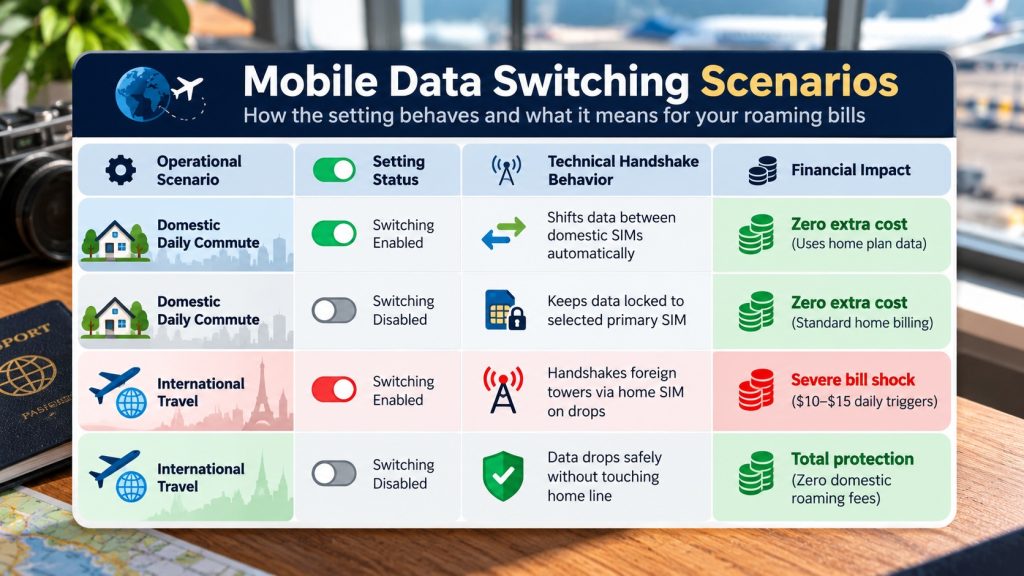
A single background app update or cloud sync ping instantly activates a daily pass. Therefore, exchanging merely three kilobytes of data triggers a mandatory twelve-dollar daily charge.
If this silent network handover repeats across a ten-day holiday, disaster strikes quickly. You easily incur over one hundred dollars in unnecessary, expensive domestic carrier penalties.
Understanding how auto data switching roaming charges accumulate helps you protect your travel savings. You can easily shut down these automated background carrier triggers before departure.
What Does 'Allow Cellular Data Switching' Actually Do?
Engineers designed automated network failover tools to improve everyday urban mobile experiences. When you stay in your home country, dropping an internet connection feels very annoying.
If you make a voice call on line one, line two provides background data. Hence, this automated switching tool delivers smooth, uninterrupted browsing across local metropolitan cellular towers.
The Engineering Intent: Seamless Home Connectivity
At home, both of your cellular plans usually feature affordable domestic data allowances. When you walk into a subway station with weak coverage, your phone adapts.
The modem switches data channels quickly so your online streaming music never stops playing. Similarly, the system bridges voice calls smoothly without dropping ongoing file downloads.
Software developers built this feature strictly to maximize connection speed and reliability. They never optimized this automated background tool for cost-sensitive international roaming scenarios.
The Overseas Reality: Automatic Failover to Punitive Home Rates
The moment you board an international flight, the economic rules change completely. Your travel profile provides cheap local data, while your home line charges exorbitant rates.
Leaving automated switching enabled allows your phone to make expensive financial decisions silently. Whenever your travel data stutters, your phone opens a paid home carrier channel.
The device does not display any warning prompts or ask for your permission. It simply routes active internet traffic through your expensive home network without hesitation.
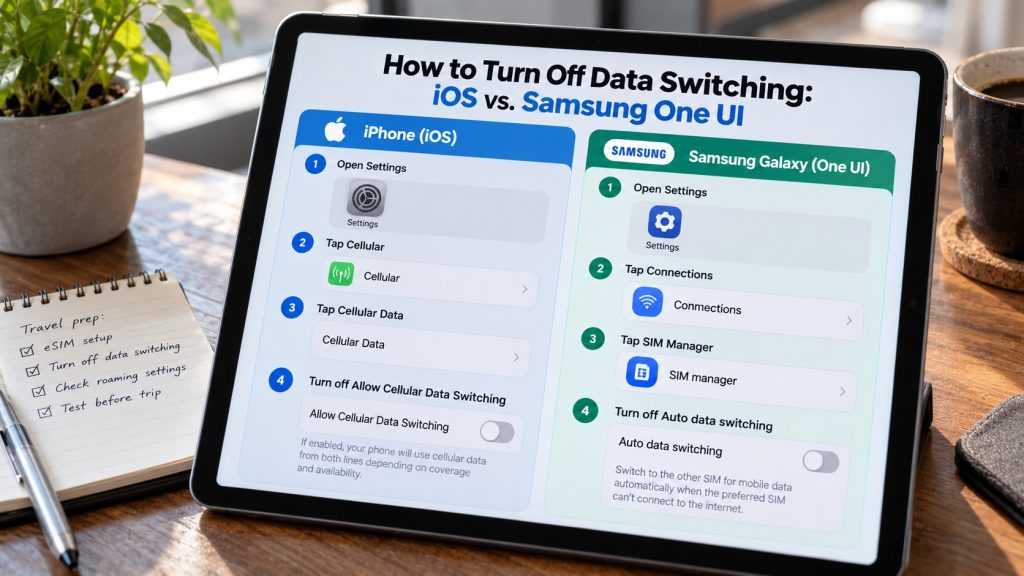
How to Turn Off 'Allow Cellular Data Switching' on Apple iPhone
Apple includes this automatic network fallback tool on every modern dual-SIM iPhone. You must disable this hidden slider before your flight leaves the runway tarmac.
IPHONE NAVIGATION CLICK PATH:
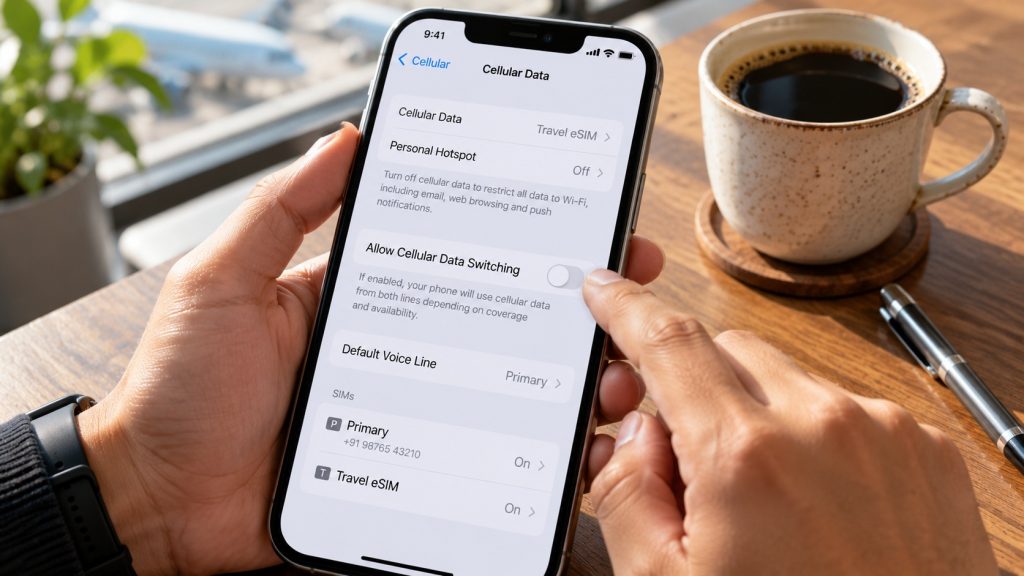
Settings ➔ Cellular (or Mobile Data) ➔ Cellular Data ➔ Toggle OFF “Allow Cellular Data Switching”
For detailed iPhone technical guides, check the following links:
1. How to Install eSIM on iPhone- Link 1 , Link 2, Link 3
Step-by-Step Settings Flow for iOS 17, 18, and 19
Following this linear sequential path locks your data strictly to your travel profile:
- Open the primary Settings application on your Apple iPhone.
- Tap directly on the Cellular menu (labeled Mobile Service in certain regions).
- Tap the top item labeled Cellular Data to view your active profiles.
- Ensure your newly installed digital travel profile displays an active blue checkmark.
- Locate the toggle switch labeled Allow Cellular Data Switching directly beneath your profiles.
- Slide the switch to the OFF position so the green background disappears completely.
Taking ten seconds to turn off mobile data switching iPhone options prevents costly errors. Your iPhone will now refuse to use your domestic line for background web packets.
Verifying Your Default Voice vs. Data Line Assignments
After disabling the automated switching toggle, verify your individual line operational assignments. Return to the main cellular menu and examine your default line distribution carefully.
Set your primary home line as your permanent default choice for voice calls. This lets you receive urgent telephone calls and two-factor text messages continuously.
Next, ensure your secondary travel profile serves as your exclusive mobile data provider. This clean division keeps your internet activity isolated strictly to your prepaid travel bucket.
How to Turn Off 'Auto Data Switching' on Samsung Galaxy & Android
Android manufacturers like Samsung incorporate identical automated network fallback tools within their interfaces. Samsung labels this proprietary software tool “Auto Data Switching” inside the One UI dashboard.
SAMSUNG GALAXY CLICK PATH:
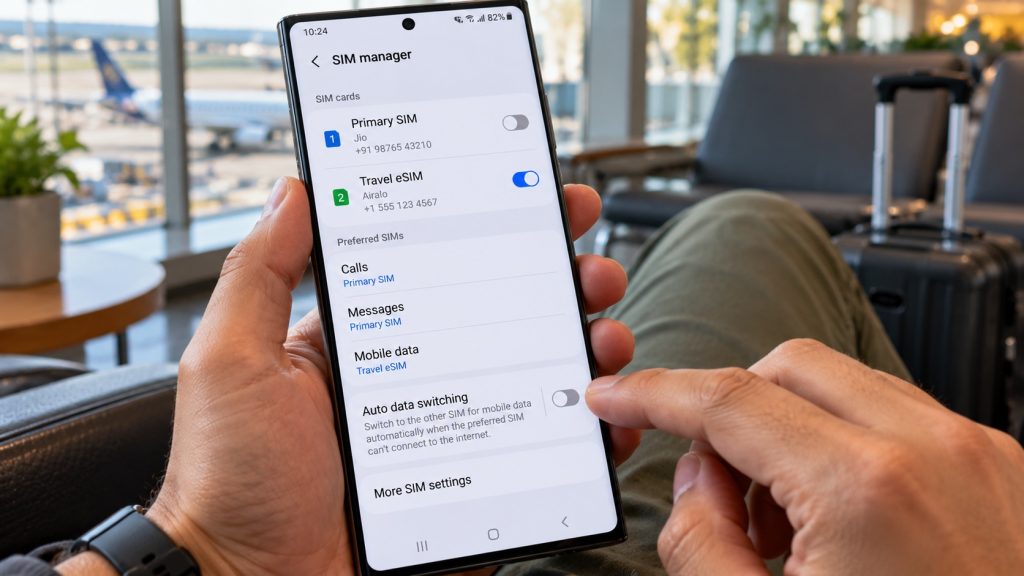
Settings ➔ Connections ➔ SIM Manager ➔ Toggle OFF “Auto Data Switching”
Watch the YouTube tutorial to learn how to install eSIM on your Samsung device.
Navigating Samsung One UI SIM Manager
Samsung Galaxy flagship and mid-range devices manage dual-SIM connections through a dedicated interface:
- Launch your device Settings menu from the application drawer.
- Tap on the topmost setting category labeled Connections.
- Scroll down slightly and tap directly into SIM Manager.
- Review your active cards to confirm both SIM lines show enabled switches.
- Tap on Mobile Data under the Preferred SIMs header and select your travel profile.
- Locate the dedicated slider labeled Auto Data Switching directly beneath your SIM cards.
- Switch this toggle to the OFF position immediately.
Disabling this setting guarantees that Samsung One UI never bridges data over home cards. Your device maintains a strict digital wall between domestic cellular voice and travel data.
Disabling Dual-SIM Data Switching on Stock Android (Pixel & Others)
Google Pixel handsets and Motorola devices handle dual-SIM failovers through standard stock settings. Open your Settings app and select the Network & Internet configuration menu.
Tap on SIMs and choose your primary domestic carrier card from the list. Scroll down into the advanced cellular preferences and locate Mobile Data.
Turn off the slider labeled Backup Calling or Switch Data Automatically. This step prevents your Pixel handset from using your domestic carrier during signal drops.
Please visit our YouTube channel for technical guides on Android phones.
The Zero-Byte Leakage Protocol: Safe Dual-SIM Setup for International Travel
Many international flyers wonder why they should keep their domestic line turned on. The answer centers entirely on maintaining access to essential two-factor authentication passcodes.
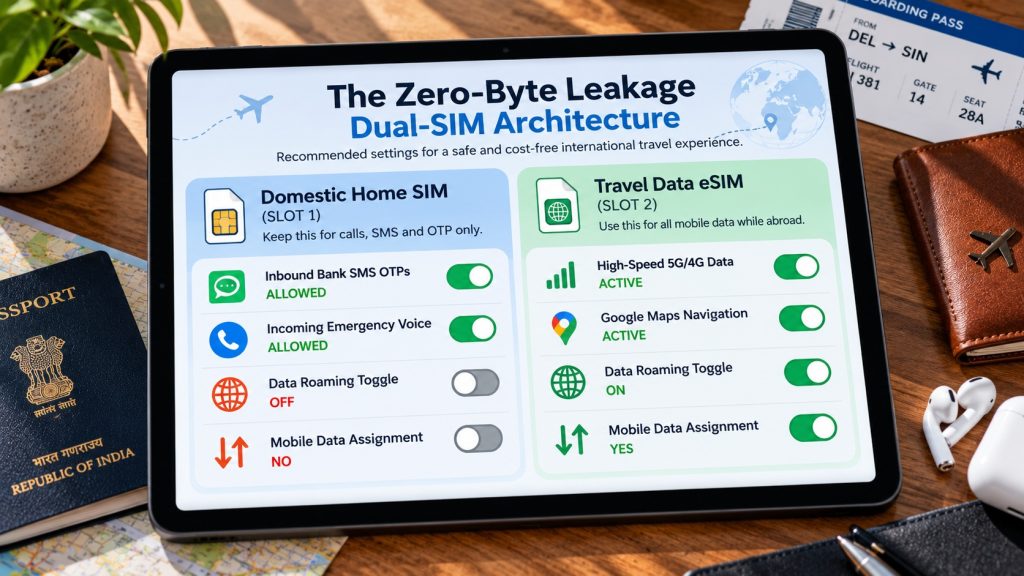
Keeping Domestic Lines Active for Free Incoming Bank OTPs
Modern banking platforms, credit card portals, and flight apps demand instant verification passcodes. If you disable your home SIM entirely, you lose incoming two-factor texts.
Fortunately, global mobile telecom networks deliver incoming SMS messages without charging roaming fees. Keeping your primary line powered on allows you to receive these vital passcodes freely.
You do not need to purchase an expensive carrier international roaming package either. You simply need basic service validity active on your primary domestic account balance.
Disabling Data Roaming Exclusively on Your Home SIM
To ensure complete safety, you must construct a secondary hardware firewall inside settings. Open your primary home SIM configuration menu inside your smartphone network settings dashboard.
Locate the specific toggle labeled Data Roaming and switch it firmly to OFF. Conversely, select your travel profile and switch its Data Roaming toggle to ON.
This dual configuration tells your hardware modem to reject foreign cellular data requests. If data switching accidentally activates, your home card refuses to transmit internet traffic.
Blocking Secondary Leaks: Wi-Fi Assist and Background App Refresh
Smartphones possess additional hidden features that consume mobile data when Wi-Fi weakens. Apple includes a feature called Wi-Fi Assist at the bottom of cellular settings.
When your hotel Wi-Fi signal stutters, Wi-Fi Assist routes data over cellular connections. If data switching remains active, this feature can inadvertently trigger domestic carrier charges.
Scroll to the absolute bottom of the iPhone cellular menu and disable Wi-Fi Assist. Furthermore, navigate to general settings and switch off Background App Refresh temporarily.
Comprehensive Settings Configuration & Audit Matrix
Review this complete reference audit matrix before your airplane departs the terminal gate. Every setting must match these parameters to ensure zero carrier billing surprises abroad.
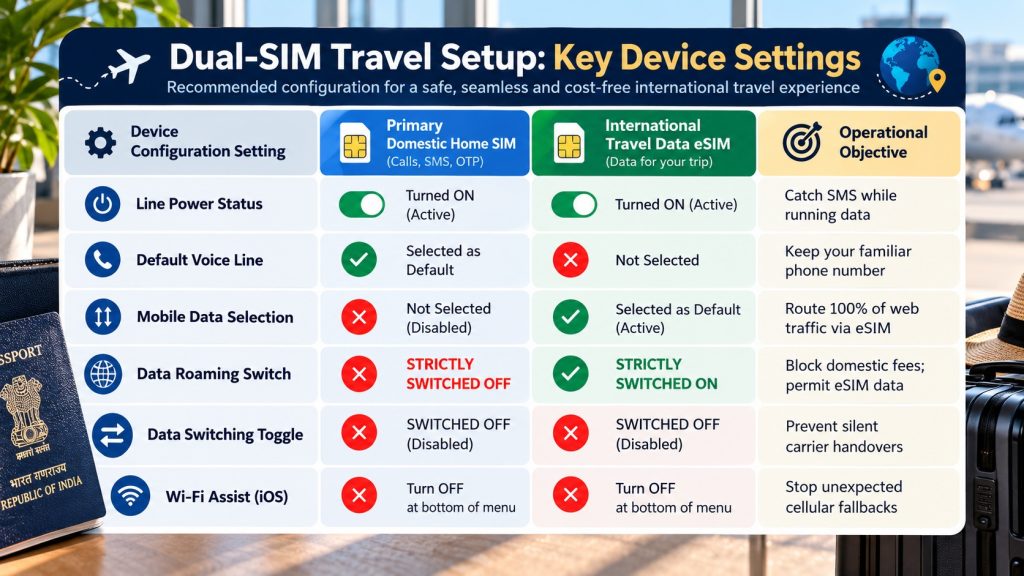
Following this operational checklist protects your finances throughout your entire overseas journey. You can browse, stream, and navigate without fearing a disastrous post-vacation invoice.
When to Turn Mobile Data Switching Back On (Returning Home)
After your return flight touches down at your home airport, reverse these steps. You can safely restore automated network switching once you re-enter domestic carrier coverage.
First, navigate to your device cellular menu and remove your expired travel profile. Deleting an expired travel profile keeps your smartphone settings dashboard tidy and clean.
Next, re-assign your primary domestic card as your default choice for mobile data. You can now re-enable Allow Cellular Data Switching or Auto Data Switching safely.
At home, this feature will once again provide smooth, continuous coverage across town. You enjoy uninterrupted data streaming without risking any surprise carrier international fees.
Frequently Asked Questions (FAQs)
“Allow Cellular Data Switching” is a native smartphone feature that allows your handset to draw cellular data from either active line depending on signal strength. Manufacturers enable this setting by default to ensure you never experience dropped connections during calls or weak reception periods at home.
No, disabling data switching strictly controls cellular mobile data traffic. Your home line remains fully connected to foreign cell towers for incoming voice calls, text messages, and bank security passcodes without interruption.
If automated data switching remained enabled, your device silently routed background internet data through your home line whenever your travel signal dipped. A single background telemetry packet triggers your domestic carrier’s twenty-four-hour international roaming charge automatically.
On Samsung Galaxy devices running One UI, the feature is explicitly named “Auto Data Switching.” You can locate and disable this setting by navigating to Settings, tapping Connections, and selecting the SIM Manager menu.
You must keep “Data Roaming” turned strictly OFF on your primary domestic SIM card at all times abroad. Conversely, you must turn “Data Roaming” ON specifically for your travel eSIM so it can access local partner carrier data.
You May Like Reading Similar Blogs
Why Does My eSIM Have Full Signal Bars but No Internet? 7 Underlying Fixes
Is Your Phone eSIM Compatible? Check in 60 Seconds
eSIM vs Pocket WiFi vs International Roaming: Which Is Best for Your Trip in 2026?
Day Pass, Unlimited or Fixed Data eSIM: Which Plan Is Best for Your Trip?
Best eSIM for Indian Travelers Going Abroad: Complete 2026 Guide
How to Keep Your WhatsApp Number Active While Using a Travel eSIM
Top 15 Things to Do in Langkawi
Should I Install My eSIM Before Travel or After Landing?
eSIM for Short Layovers and Airport Transit: Do You Really Need Data for 2–6 Hours?
eSIM for Digital Nomads and Remote Workers
eSIM Security and Privacy: Is Your Data Safe When Traveling?
Best eSIM, Physical SIM for Southeast Asia: Nepal, Sri Lanka, Philippines, Bali Compared
Best Asia eSIM for Indians, NRIs and International Tourists: Travel Across 20 Plus Countries
Affordable eSIM for Singapore: Safe High‑Speed Data for International Tourists
Is ‘Unlimited’ eSIM Really Unlimited? The Truth About Throttling & Hidden Data Limits
How Much eSIM Data Do I Really Need? A Calculator for Every Type of Traveler
Complete eSIM Troubleshooting Guide — Why It’s Not Working & How to Fix It
Subscribe to our YouTube channel and follow us on Instagram for more updates.
Leave a comment