


Using iMessage with travel eSIM data does not mean saying goodbye to your usual number (Apple). Apple separates travel connectivity from your messaging identity. However, your setup matters (Apple). This guide explains the settings, roaming risks, and fixes worth checking before your first message abroad (Apple).
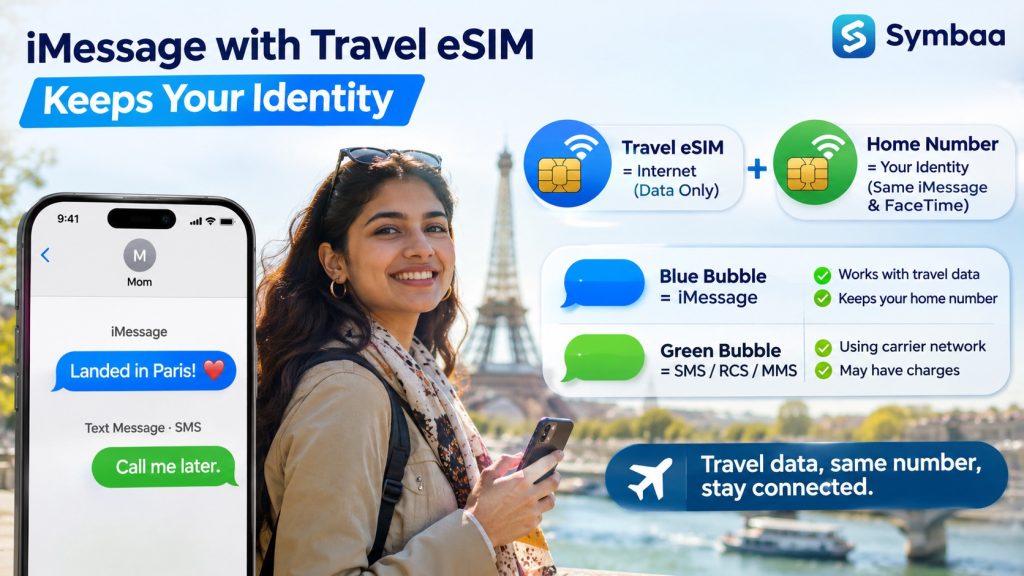
For example, Priya can buy travel data without asking everyone to save another number (Apple). However, she must distinguish iMessage from ordinary texts (Apple). Apple identifies blue bubbles as iMessage. Green bubbles indicate RCS, SMS, or MMS instead, with different carrier requirements and potential charges (Apple).
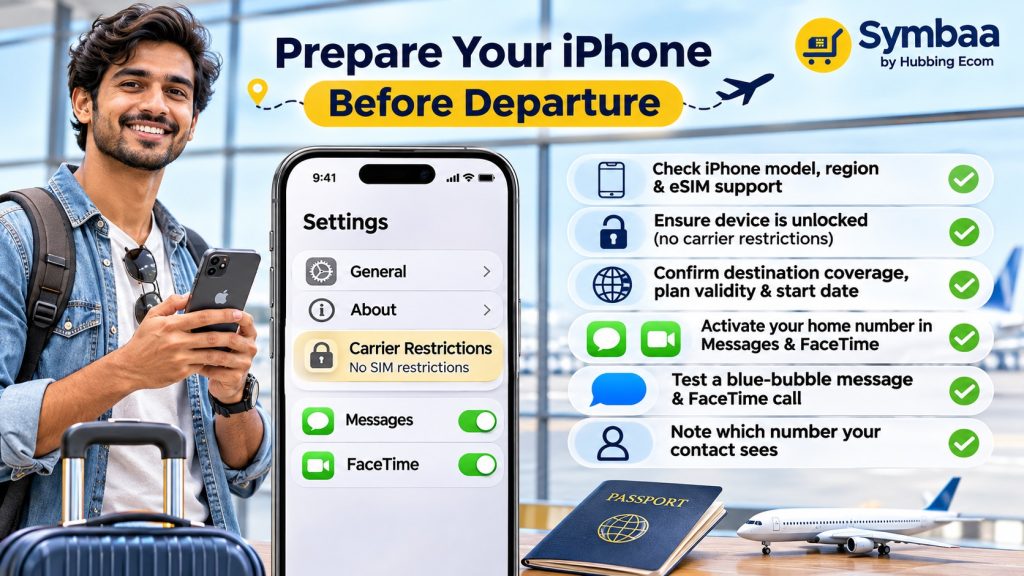
First, check your exact iPhone model, purchase region, and eSIM support (Apple). Then inspect Settings > General > About for carrier restrictions (Apple). Apple requires an unlocked device when using another provider. Also, confirm destination coverage, plan validity, and when your travel package starts counting (Apple).
Next, activate your home number in Messages and FaceTime before leaving (Apple). Apple requires an active associated SIM when setting up phone-number access. Therefore, keep your home account valid (Apple). Test a blue-bubble message and FaceTime call, then record which number your contact sees (Apple).
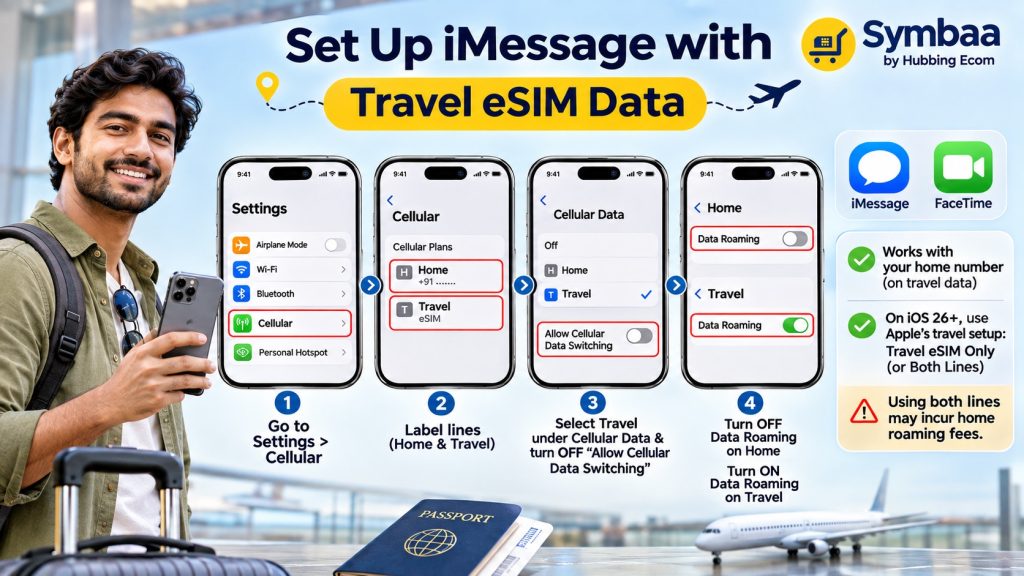
First, label your lines Home and Travel under Settings > Cellular or Mobile Data (Apple). Then choose Travel under Cellular Data (Apple). Apple lets you select one mobile-data network. Also, disable Allow Cellular Data Switching so your phone cannot automatically select home data instead (Apple).
Next, disable Data Roaming specifically on Home, not indiscriminately across both lines (Hubbing Ecom). Your travel provider may require roaming on Travel (Hubbing Ecom). For example, Hubbing Ecom instructs customers to enable travel-line roaming. Therefore, check each label carefully before changing any switch in the cellular settings menu (Hubbing Ecom).
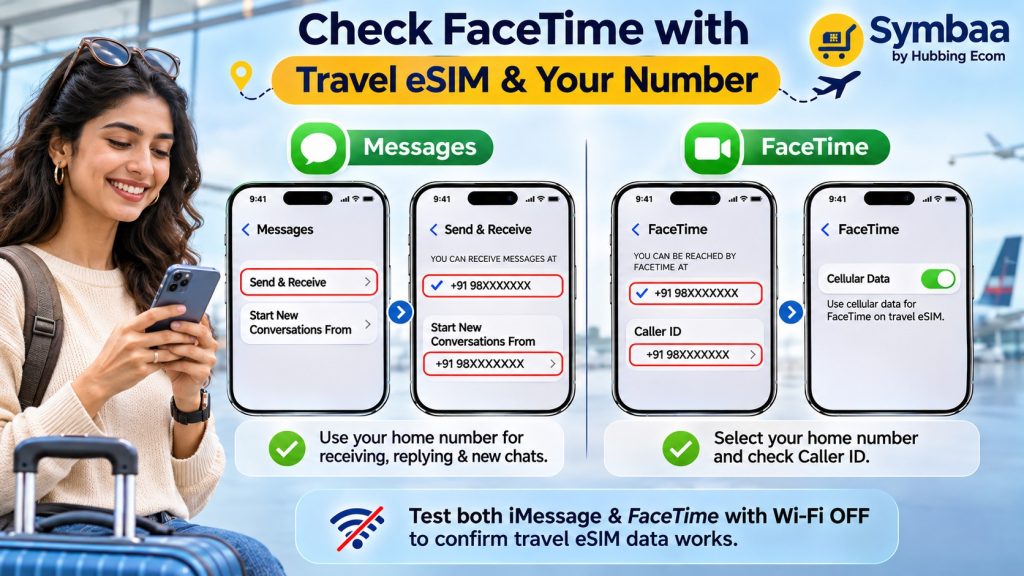
Next, open Settings > Apps > Messages > Send & Receive (Apple). Select your home number for receiving and replying (Apple). Then choose that number under Start New Conversations From (Apple). Apple explains phone-number selection for messaging. Similarly, review existing conversations before assuming every thread now uses that identity (Apple).
For FaceTime with travel eSIM, open Settings > Apps > FaceTime and review your reachable addresses (Apple). Then select your home number and check Caller ID (Apple). Apple recommends checking FaceTime settings and cellular access. Finally, test while Wi-Fi stays off, confirming that travel data actually works (Apple).
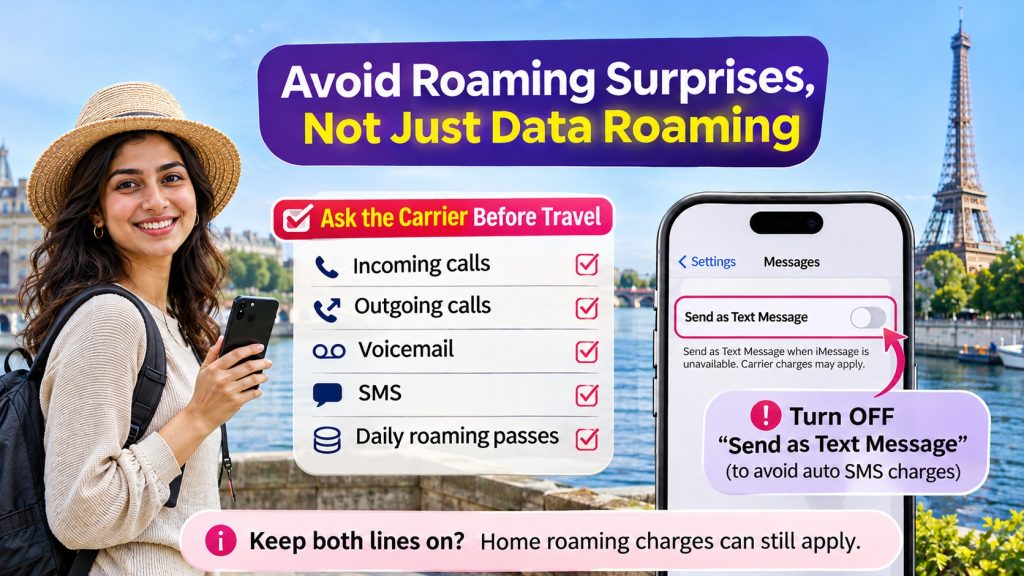
Your keep phone number with travel eSIM checklist must separate internet costs from carrier services (Apple). Apple warns that home roaming charges can continue with both lines enabled. Therefore, ask about incoming calls, outgoing calls, voicemail, SMS, and daily roaming passes before departure (Apple).
Also, disable Send as Text Message under Settings > Apps > Messages to prevent automatic SMS fallback (Apple). Apple explains this switch and possible messaging charges. However, it does not block manually sent texts, activation messages, or ordinary calls (Apple). Other carrier billing triggers can still apply (Apple).
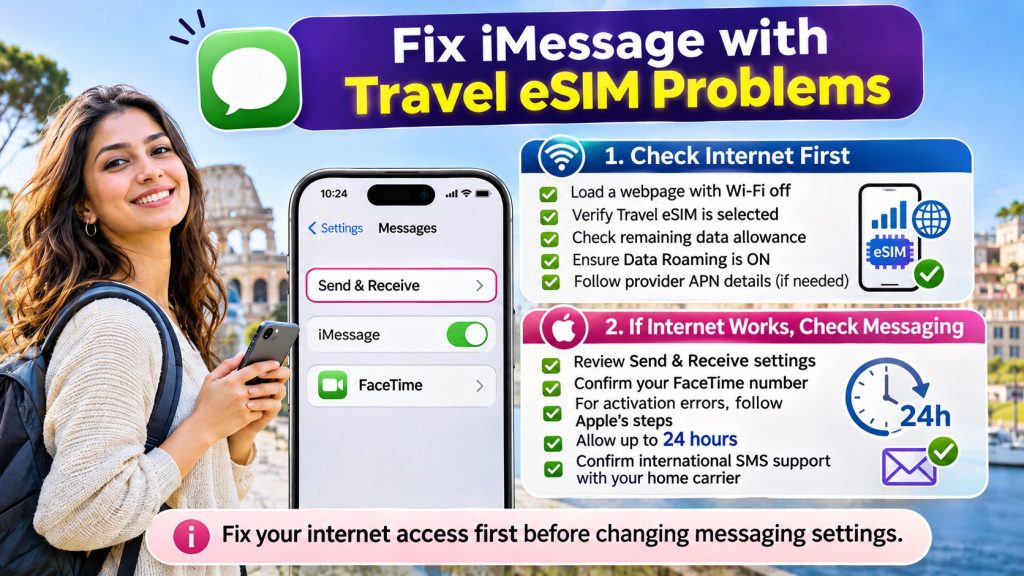
For iMessage not working with travel eSIM, first load a webpage with Wi-Fi off . If browsing fails, inspect Travel selection, remaining allowance, roaming, and provider instructions (Hubbing Ecom). Therefore, fix internet access before changing messaging settings (Hubbing Ecom).
If browsing works, inspect Send & Receive and your FaceTime number selection (Apple). For activation errors, follow Apple’s troubleshooting and allow up to 24 hours. Also, confirm international SMS support with your home carrier (Apple). Avoid repeatedly toggling iMessage while verification already shows a spinning indicator (Apple).
The simplest plan combines a working data connection with the correct messaging identity (Apple). For iMessage abroad with same number, verify both before sightseeing (Apple). Meanwhile, treat carrier calls and banking texts separately (Apple). Use this recommendation table alongside Apple’s travel guidance, rather than assuming one setting solves everything.
Need | Recommendation |
Travel internet | Choose an eligible plan through Symbaa or Hubbing Ecom. |
Same messaging identity | Select your home number in Messages and FaceTime (Apple). |
Minimal home-line exposure | Consider supported travel-only setup; test your number (Apple). |
Banking OTPs | Confirm home-line SMS access and carrier terms separately (Hubbing Ecom). |
No eSIM support | Ask Hubbing Ecom about compatible physical data cards. |
Your keep phone number with travel eSIM plan should prioritise identity checks over guesswork (Apple). For iMessage abroad with same number, compare your settings against Apple’s number guidance. However, review Hubbing Ecom’s plan details separately. Connectivity benefits and supported app features depend on your selected package (Apple).
Choose a data-only eSIM for iMessage when internet access meets your travel needs (Apple). However, keep a separate checklist for iMessage not working with travel eSIM situations (Apple). For example, Apple’s activation guidance addresses phone-number verification. Meanwhile, your travel provider handles package connectivity and remaining data (Apple).
How to use iMessage with a travel eSIM?
First, select your travel plan for mobile data (Apple). Then keep your existing phone number selected within Messages settings (Apple). Apple supports home-line messaging over travel connectivity. Finally, send a test message before relying on the setup for important conversations during your trip (Apple).
How to use FaceTime with a travel eSIM?
For FaceTime with travel eSIM, select travel data and confirm your reachable home number (Apple). Then check FaceTime’s cellular permission and test a call (Apple). Apple requires cellular or Wi-Fi connectivity. However, regional restrictions can affect availability, even when your internet connection works normally elsewhere (Apple).
How to keep my phone number on iMessage with a travel eSIM?
Start with a valid home subscription and finish number activation before departure (Apple). Then check Send & Receive after switching data plans (Apple). Apple requires an associated active SIM for number setup. Therefore, adding travel data cannot replace ownership of your existing home telephone number (Apple).
How to use iMessage and FaceTime abroad with the same number?
Select the same home number inside both Apple services (Apple). Meanwhile, let your travel plan provide their internet connection (Apple). Apple supports this separation abroad. Finally, ask a contact to confirm your identity through a message and FaceTime call (Apple). Test before leaving home (Apple).
Can I use iMessage with a data-only travel eSIM?
Yes, a data-only eSIM for iMessage can provide the internet connection (Apple). However, activate your home-number identity separately before travelling (Apple). Apple describes retaining home-line messaging with travel data. Also, confirm that your recipient uses iMessage rather than assuming every Messages conversation qualifies for this (Apple).
Can I use FaceTime with a data-only eSIM abroad?
Yes, FaceTime with travel eSIM data works where the service remains available (Apple). However, local restrictions and carrier limitations still matter (Apple). Apple confirms these availability exceptions. Therefore, test your destination connection and keep another permitted contact method available (Apple). Plan ahead for urgent family conversations (Apple).
How to set travel eSIM for data and keep primary number for iMessage?
Choose Travel under Cellular Data, then select your primary number inside Messages (Apple). Also, disable automatic data switching (Apple). Apple documents separate data-line and messaging choices. Consequently, your internet provider and visible number need not match anywhere your travel package covers (Apple).
Which iPhone dual SIM settings for iMessage when travelling abroad matter?
Check your data line, home roaming switch, data switching, and Messages identity (Apple). Then inspect FaceTime separately instead of assuming matching settings (Apple). Apple allows distinct line choices. Also, review the sending number inside an existing conversation, particularly after changing your default line (Apple).
Does installing a travel eSIM change my iMessage number?
No, installation does not automatically replace your home-number ownership (Apple). However, check your sending identity after any setup changes (Apple). Apple explicitly supports home-line messaging alongside travel connectivity. Therefore, verify your number in Messages rather than assuming the travel profile must supply another number (Apple).
Can I turn off my primary SIM and still use iMessage abroad?
Apple says its travel-only setup keeps home-line iMessage and FaceTime working. However, do not treat arbitrary SIM removal as identical (Apple). For iMessage abroad with same number, test supported setup first (Apple). Also, retain your home subscription and expect different behaviour if phone-number activation later fails (Apple).
How to avoid roaming charges while using iMessage abroad?
Use travel data and disable home data roaming (Apple). Also, stop automatic data switching and SMS fallback (Apple). However, Applewarns about remaining home-line fees with both lines enabled. Therefore, ask your carrier which actions trigger charges before treating any dual-line configuration as completely charge-free (Apple).
What fixes iMessage not working after installing travel eSIM?
For iMessage not working with travel eSIM, separate data failure from identity failure (Apple). First, test browsing over travel data (Apple). Then check your selected number (Apple). Apple provides activation troubleshooting. However, avoid deleting profiles or repeatedly restarting verification before establishing which part of the setup fails (Apple).
Why is iMessage sending from email instead of phone number abroad?
Your current sending selection or incomplete number activation can explain email-based messages (Apple). Therefore, inspect Send & Receive first (Apple). Apple notes email-only behaviour during activation problems. Next, choose your number when available and start a test conversation (Apple). Ask your contact which sender address appears (Apple).
Why is my phone number not showing in iMessage after adding travel eSIM?
Check your home account and associated SIM, then follow Apple’s activation checks (Apple). Also, confirm that your carrier supports international activation SMS (Apple). Apple allows up to 24 hours for verification. Meanwhile, use your Apple Account email if necessary, explaining the temporary identity change to contacts (Apple).
What fixes FaceTime not working after switching to travel eSIM?
First, test internet access and confirm FaceTime can use cellular data (Apple). Then check your reachable number, automatic date settings, and restrictions (Apple). Apple lists these checks. However, working mobile data cannot remove destination restrictions (Apple). Therefore, verify local availability before repeatedly changing account settings or plans (Apple).
Can a data-only eSIM for iMessage receive banking OTPs?
No, travel data does not supply your home number’s ordinary SMS service (Hubbing Ecom). For example, Hubbing Ecom distinguishes data-only access from standard SMS. Therefore, arrange OTP access through your home carrier separately (Hubbing Ecom). Also, keep another bank-approved verification method ready whenever your bank offers an alternative.
Does iMessage abroad with same number include ordinary phone calls?
No, number-based iMessage identity does not turn internet data into a carrier voice allowance (Hubbing Ecom). For example, Hubbing Ecom separates data-only plans from standard calls. Therefore, use supported internet calling apps appropriately (Hubbing Ecom). Meanwhile, check home-carrier pricing before answering or placing conventional calls during international travel (Hubbing Ecom).
What belongs on a keep phone number with travel eSIM checklist?
Include home-account validity, completed Apple activation, correct number selection, and a tested data connection (Apple). Then add carrier-charge checks before departure (Apple). Apple explains number setup requirements. Finally, save support details and offline installation instructions (Apple). These simple preparations help you troubleshoot without depending on airport Wi-Fi (Apple).
How can Symbaa help with iMessage not working with travel eSIM?
Use Symbaa to review eligible-plan usage and check your remaining allowance (Hubbing Ecom). Hubbing Ecom describes supported usage-management features. However, Symbaa cannot control Apple’s number activation (Apple). Therefore, contact travel support for data problems (Hubbing Ecom). Ask your home carrier or Apple about unresolved number activation issues (Apple).
What does keep phone number with travel eSIM mean after returning home?
Switch mobile data back to Home and confirm your usual line works (Apple). Apple says supported devices may restore home settings automatically. However, check rather than assume (Apple). Finally, review Messages and FaceTime identity, then disable your unused travel line (Apple). Keep profiles you might need again (Apple).
You may like reading similar Blogs
Using Ride-Hailing Apps Abroad: Uber, Grab, Bolt & Kakao T with a Data-Only eSIM
How Many eSIMs Can an iPhone, Samsung, and Google Pixel Store at Once?
eSIM Hotspot Not Working? How to Fix Tethering on iOS and Android Abroad
Does Travel eSIM Support Wi-Fi Calling? How to Check Your Phone
Does a VPN Work with Travel eSIM? Common Problems, Fixes & Tips
How to Turn Off ‘Allow Mobile Data Switching’ to Stop Surprise Carrier Roaming Bills
Why Does My eSIM Have Full Signal Bars but No Internet? 7 Underlying Fixes
Is Your Phone eSIM Compatible? Check in 60 Seconds
Never Delete Your Travel eSIM: What Happens When You Tap ‘Delete eSIM’ & How to Recover
eSIM vs Pocket WiFi vs International Roaming: Which Is Best for Your Trip in 2026?
About the Author
Swatantra Ranjan is a telecom professional with over 15 years of experience in the global telecommunications industry having worked in India & Dubai, specializing in eSIM solutions, voice services, SMS, international roaming, Direct Inward Dialing (DID) numbers, virtual numbers, and sales/services experience in B2C/B2B banking industry. Having traveled to more than 20 countries, he combines deep technical expertise with firsthand international travel experience to create practical, accurate, and trustworthy content on global connectivity, mobile technology, and travel communications. His articles help travelers, businesses, and telecom professionals make informed decisions about staying connected efficiently and securely across the world. Check out LINKEDIN Profile
Leave a comment