

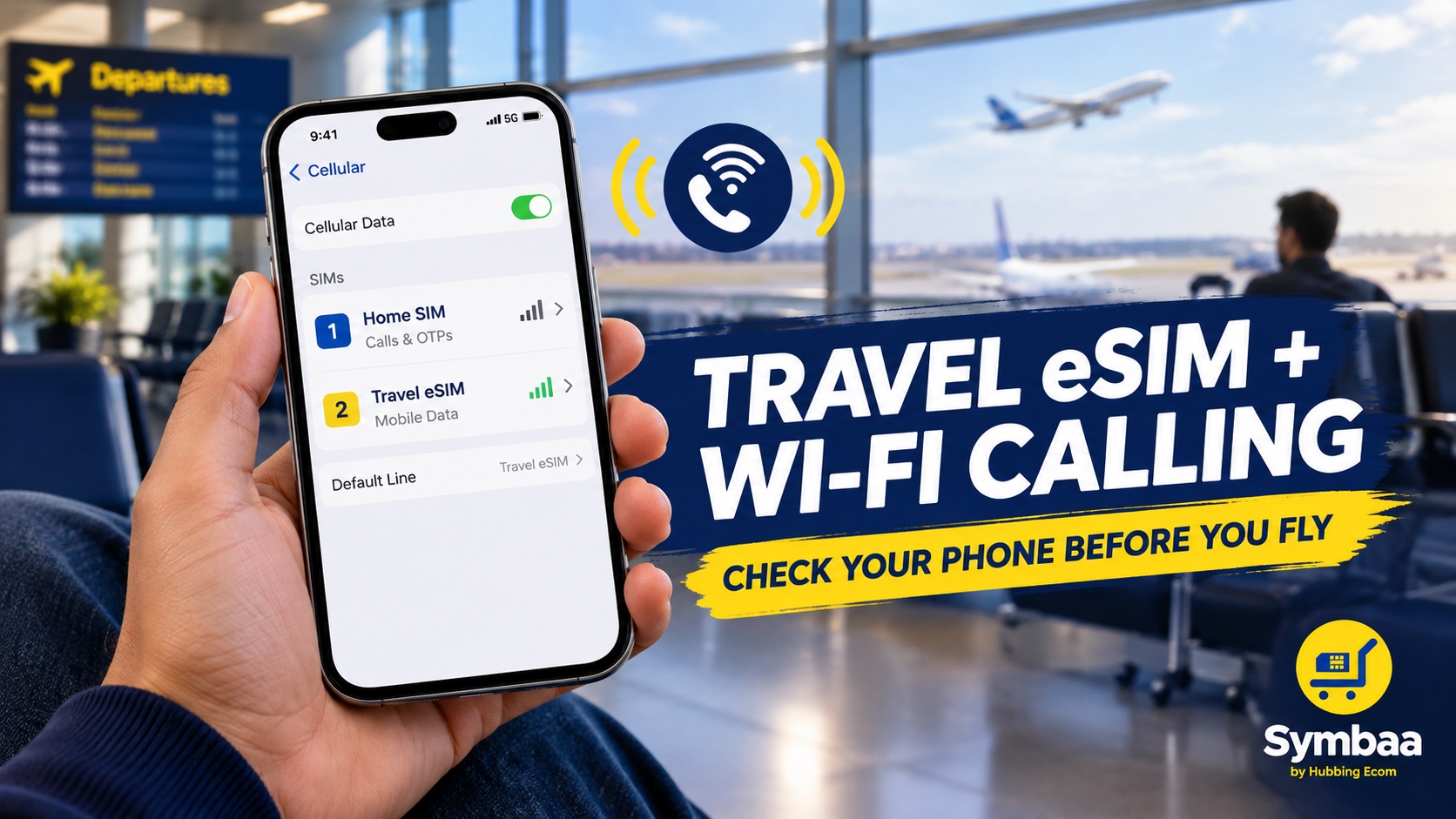
A travel eSIM usually provides mobile data, not a new calling number. Meanwhile, Wi-Fi Calling belongs to your home mobile operator. Therefore, both services can work together abroad. However, your phone, home plan, destination, and operator must support this arrangement.
So, Does eSIM support Wi-Fi Calling? An eSIM can carry a voice plan or data-only plan. However, most travel products supply data only. Consequently, they cannot directly place regular carrier calls. Instead, your home SIM may handle calls through approved Wi-Fi Calling.
Many travellers ask, does a travel eSIM support Wi-Fi Calling while traveling abroad? Your home operator decides the answer. This matters significantly. Apple confirms that availability varies by carrier and country. Similarly, Google says not every carrier supports this feature.
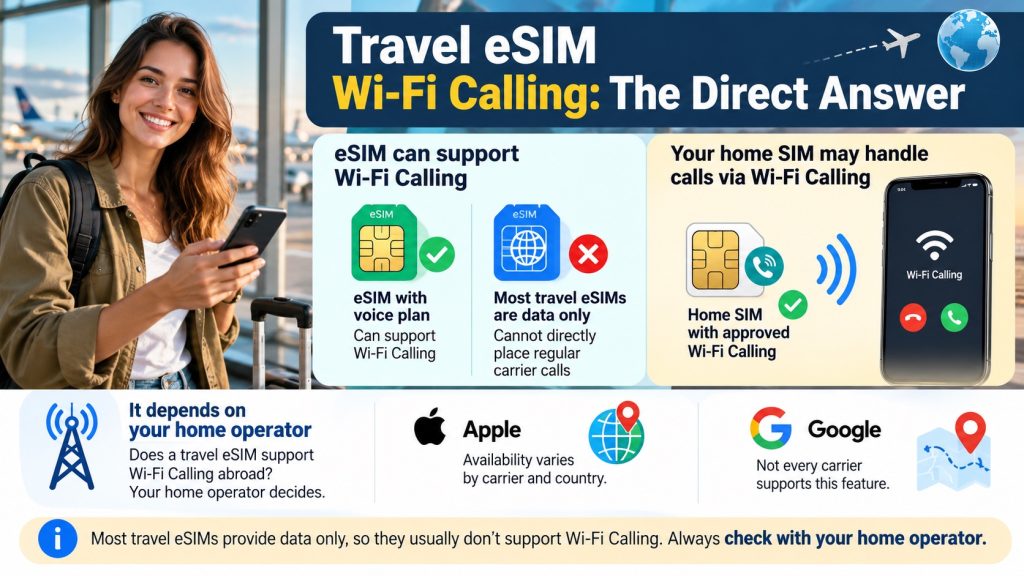
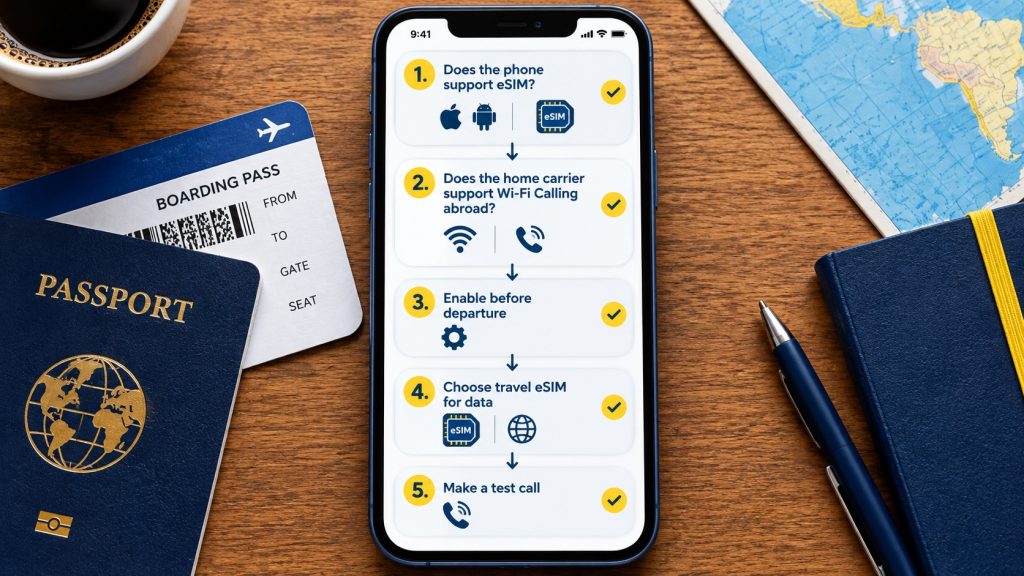
First, your phone must support eSIM, Dual SIM, and Wi-Fi Calling. Next, your home operator must permit overseas Wi-Fi Calling. Also, keep the home line active. Finally, choose your travel eSIM as the mobile-data line. Test everything before departure. Very Important.
Does eSIM support Wi-Fi Calling without these requirements? Unfortunately, eSIM technology alone guarantees nothing. Apple provides separate Wi-Fi Calling settings for each supported line. Nevertheless, Apple advises users to confirm carrier availability and charges first.
Before buying, confirm eSIM compatibility, Wi-Fi Calling compatibility, and overseas carrier permission. This distinction explains How to Check Wi-Fi Calling Support accurately. Otherwise, your phone may display the setting at home. Yet, the service may still fail abroad. Always test before flying.
On iPhone, open Settings, Cellular, and choose your home line. Next, select Wi-Fi Calling and enable the feature. Apple may request an emergency address. Afterwards, a “Wi-Fi” carrier label confirms successful registration. Make a test call before departure. Also, check the displayed carrier label.
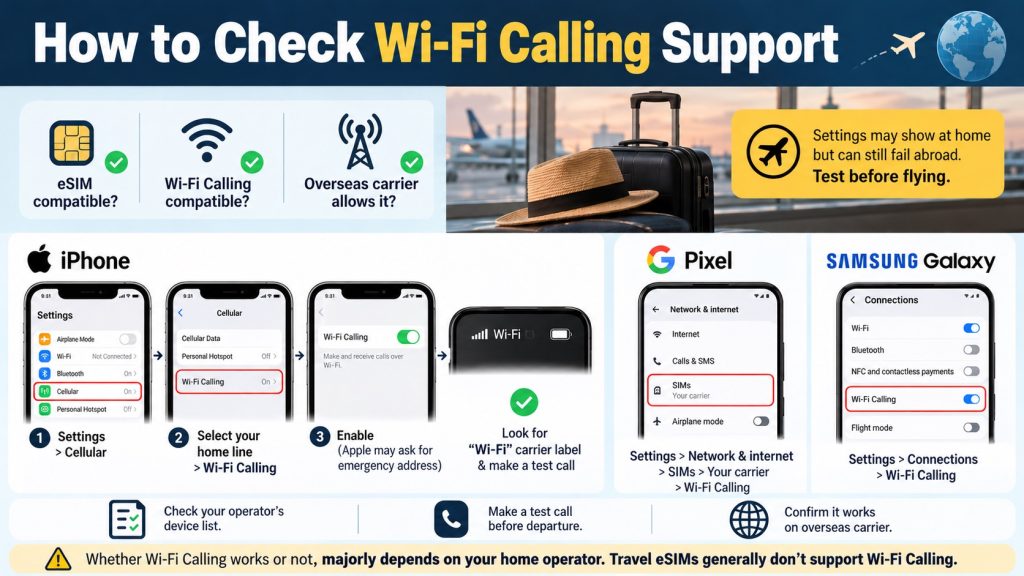
For Pixel, open Settings, Network and internet, SIMs, your carrier, then Wi-Fi Calling. For Galaxy, open Settings, Connections, then Wi-Fi Calling. This answers how do I check if my phone supports Wi-Fi Calling before international travel? Additionally, verify your operator’s device list.
The safest setup keeps your home SIM available for calls and OTPs. Meanwhile, the travel eSIM supplies internet access. This answers a common dual-SIM question. Can I use Wi-Fi Calling with my home SIM while using a travel eSIM for mobile data? Sometimes, yes.
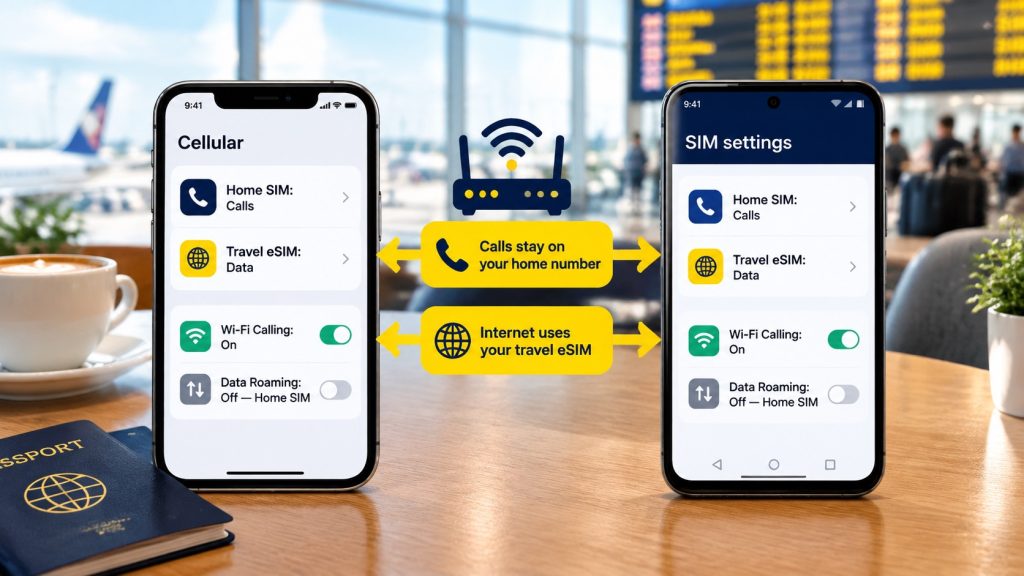
On iPhone, label both lines clearly and select the travel eSIM under Cellular Data. Meanwhile, keep your home line selected for voice. Finally, enable Wi-Fi Calling on that line. Apple also provides Allow Cellular Data Switching for supported situations. Review possible data charges carefully.
Wi-Fi Calling on iPhone and Android requires different menus and device checks. On Android, choose the travel eSIM for Mobile Data. Next, retain your home SIM for calls and texts. However, manufacturers and operators may change available dual-SIM controls. Consequently, How to Check Wi-Fi Calling Support remains essential.
Users often ask, does Wi-Fi Calling use travel eSIM data or require a separate Wi-Fi connection?For Wi-Fi Calling abroad with travel eSIM, standard calling uses Wi-Fi. However, some supported phones route calls through the second SIM’s cellular data. Therefore, test your exact combination before travelling.
Additionally, can a travel eSIM’s mobile data connection support Wi-Fi Calling on my primary SIM? Certain iPhones display one line using another line’s data.Newer Pixels require carrier support and automatic data switching for simultaneous dual-line calling. Again, availability varies by model.
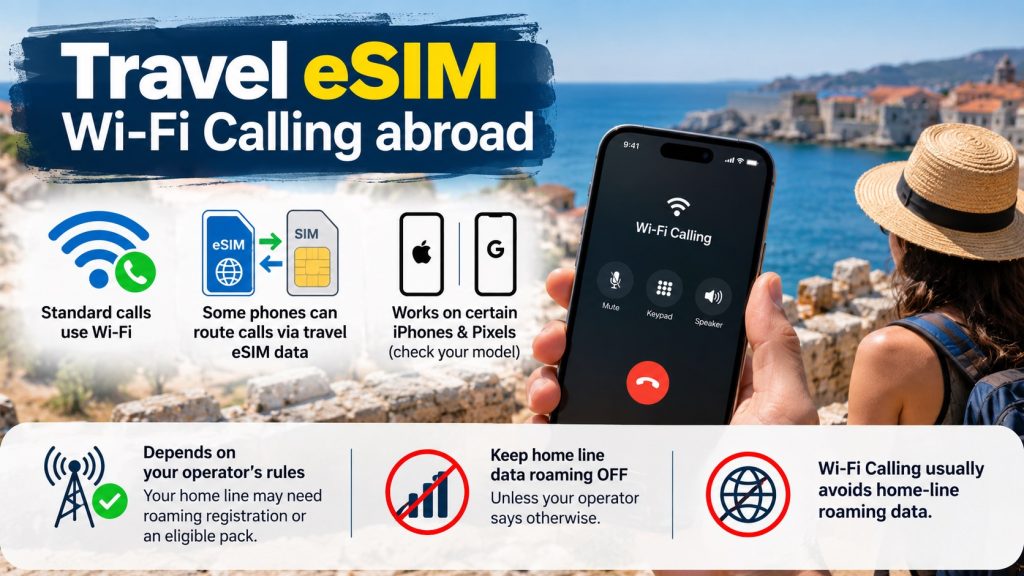
Still, Wi-Fi Calling abroad with travel eSIM depends on operator rules. Wi-Fi Calling itself often avoids home-line roaming data. Nevertheless, your home line may need roaming registration or an eligible pack. Keep its data roaming disabled unless your operator directs otherwise.
Can travellers use Jio, Airtel, or Vi overseas? Jio offers international Wi-Fi Calling through eligible roaming packs and supported devices. Conversely, Airtel’s published FAQ rejects Wi-Fi Calling during international roaming. Vi publishes a similar restriction. Hence, never assume equal operator support.
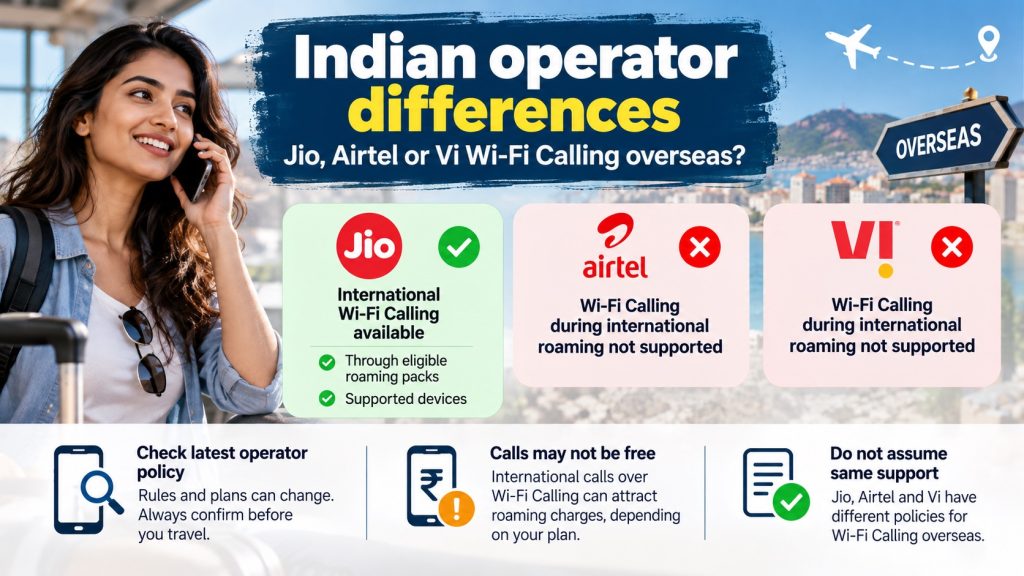
Therefore, can I use Jio, Airtel or Vi Wi-Fi Calling abroad with an international travel eSIM?needs a current operator check. Policies and plans can change. Moreover, are international calls over Wi-Fi Calling free, or will my home operator charge roaming fees? Charges may apply.
Service | Regular number | Connection | Main travel role |
Wi-Fi Calling | Yes | Wi-Fi, sometimes second-line data | Home calls and selected messages |
VoLTE | Yes | Home carrier’s mobile network | Roaming voice where supported |
WhatsApp Calling | No | Any internet data | App-to-app calls |
Travel eSIM | Usually no | Partner mobile networks | Affordable internet abroad |
Another common question asks, why is Wi-Fi Calling not working after installing a travel eSIM?Installation may change default voice or data settings. Alternatively, your carrier may block overseas use. Outdated software, weak Wi-Fi, or missing roaming eligibility can also interfere.
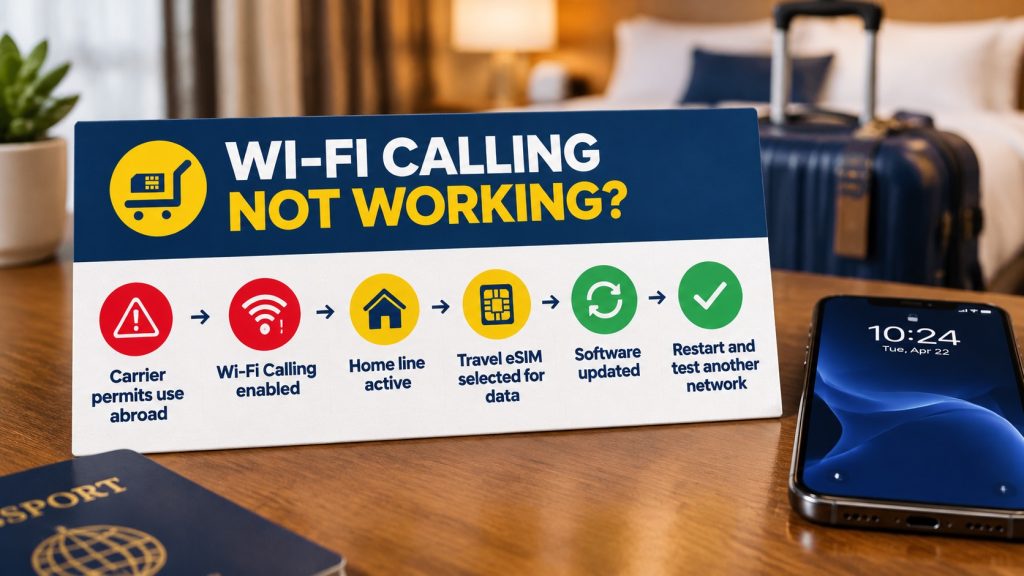
For Wi-Fi Calling on iPhone and Android, toggle the feature off and on. Afterwards, confirm the correct default voice line. Also check automatic data switching carefully. Finally, contact your carrier because travel eSIM providers cannot activate home-operator voice features. This limitation applies across many travel services.
Travellers often ask one practical question. How can I keep my Indian mobile number active for calls and OTPs while using a travel eSIM abroad? Leave that line switched on. However, disable its mobile-data roaming. Then choose the travel eSIM exclusively for cellular data.
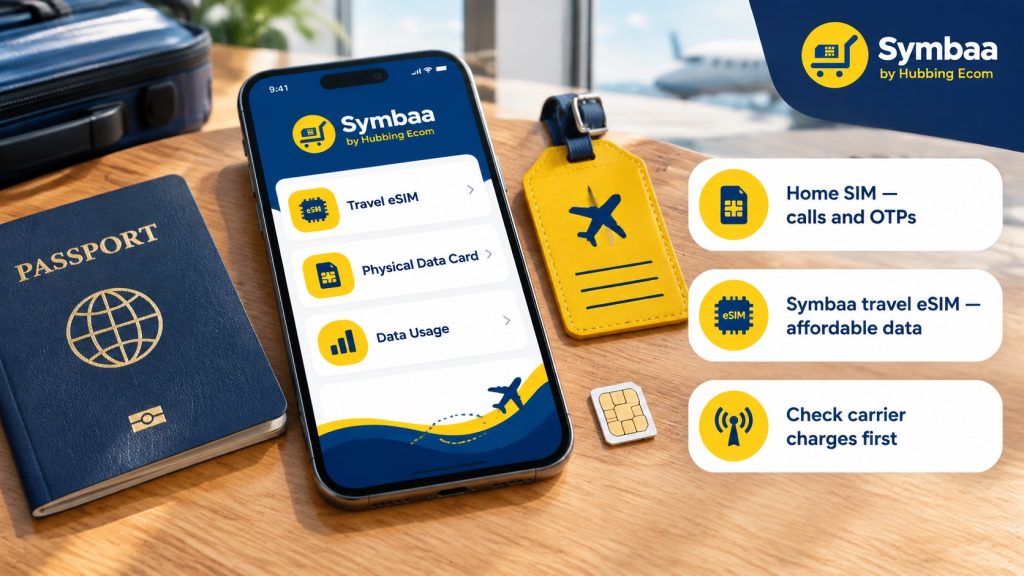
The best setup separates responsibilities. Keep your home SIM for its number, OTPs, and eligible calls. Meanwhile, use an affordable Symbaa travel eSIM for mobile data. If your phone lacks eSIM support, choose a Physical Data Card from Hubbing Ecom.
For Wi-Fi Calling abroad with travel eSIM, travellers can purchase plans through Hubbing Ecom or Symbaa. Additionally, they can monitor usage inside the Symbaa Application. This setup combines supported home calls with affordable travel data.
Traveller need | Recommended setup | Important check |
Data plus home calls | Symbaa eSIM for data; home SIM for voice | Carrier permits overseas Wi-Fi Calling |
Data plus OTPs | Symbaa eSIM; home SIM stays active | Roaming registration and SMS rules |
No eSIM-compatible phone | Hubbing Ecom Physical Data Card | Phone bands and destination coverage |
Avoid surprise charges | Home data roaming off | Voice, SMS, and roaming prices |
Download Symbaa
Travelling soon? Try our Data eSIM and Physical Data cards for travelers
Europe(works in 30+ countries) | France | Spain | Italy | Switzerland | Ireland | Greece | Poland | Russia | Austria | Czech Republic | Germany | UK | Norway | Denmark | Finland | Ireland | Netherlands | Belgium | Slovakia | Bulgaria | Croatia | Portugal | Cyprus | Estonia | Slovenia | Romania | Macedonia
Pilot/Airline Crew, Seafarers, Digital Nomads, Frequent travelers checkout these plans
Asia Plan(works in 20+ countries) | Global Plans(works in 120+ countries) | Latin America Plans(works in 25+ countries) | Africa Plans(works in 20+ countries) | Australia & New Zealand | USA & Canada | Global 100 Plans(works in 100 countries) | USA & Mexico
Frequently asked Questions(FAQs)
1. Does eSIM support Wi-Fi Calling automatically?
No. eSIM technology only stores a mobile profile. Your phone, plan, and carrier determine Wi-Fi Calling availability. Moreover, many travel eSIMs provide data only. Therefore, check your device and home operator before travel. Also, test the feature early. Does eSIM support Wi-Fi Calling then becomes easier to confirm
2. Can a data-only eSIM make normal calls?
Usually, it cannot provide regular carrier calls or a traditional number. However, its data supports WhatsApp, FaceTime, and similar apps. Meanwhile, your home SIM may handle calls through roaming or approved Wi-Fi Calling. Charges may still apply. Therefore, review your home plan.
3. How can iPhone users confirm support?
Open Settings, Cellular, and select your home line. Then enable Wi-Fi Calling and make a test call. Finally, confirm overseas availability and charges with your operator. This simple How to Check Wi-Fi Calling Support process avoids surprises after departure. Save operator support details.
4. How can Android users confirm support?
How to Check Wi-Fi Calling Support begins by searching Settings for Wi-Fi Calling. Otherwise, check Network, SIM, or Connections. If the switch remains absent, update your software. Afterwards, ask your carrier whether your model and plan qualify. Then, make one test call.
5. Does Wi-Fi Calling on iPhone and Android work identically?
No. Wi-Fi Calling on iPhone and Android involves different menus and second-line data controls. Furthermore, manufacturers customise Android features. Therefore, follow your exact model’s instructions. Also, test the complete setup before leaving your home country. Settings can change after updates.
6. Can my home SIM use travel eSIM data?
Some compatible phones and carriers support this arrangement. However, others require separate Wi-Fi. Therefore, never assume second-line data will work. Check phone documentation and operator policy before departure. Otherwise, use dependable hotel or airport Wi-Fi. Still, avoid unsecured public networks whenever possible.
7. Does Wi-Fi Calling work internationally without enabling mobile data roaming?
Often, hotel Wi-Fi supports calling without home-line data roaming. However, your operator may require roaming registration or an eligible pack. Therefore, keep home data roaming disabled unless official instructions say otherwise. Then test both line indicators carefully. This confirms Wi-Fi Calling abroad with travel eSIM before departure.
8. Will Wi-Fi calls create roaming charges?
Possibly. Carriers may treat calls as domestic, international, or roaming-pack calls. Consequently, “Wi-Fi” never means “free.” Review destination rules, eligible numbers, included minutes, and billing terms before dialling. Also, save a screenshot of relevant charges. Keep it available offline. Finally, ask about taxes.
9. Can Wi-Fi Calling receive OTP messages?
Some carriers support SMS through Wi-Fi Calling, while others limit messaging abroad. Banks may also restrict delivery. Therefore, keep roaming registration active. Moreover, arrange backup authentication. Whenever possible, test essential services before your flight. Keep email recovery available too. Also, save backup codes.
10. Why does my home line show “No Service”?
Your carrier may lack a roaming partner or Wi-Fi Calling registration. Alternatively, you may have disabled the home line. Check line status, roaming eligibility, Wi-Fi quality, and operator restrictions. Afterwards, restart your phone and contact operator support. Save its overseas helpline beforehand.
11. Wi-Fi Calling not working with eSIM?
Installing a travel profile may change default voice or data settings. Therefore, reselect your home line for calls. Choose the travel eSIM for data. Then retest on reliable Wi-Fi. If Wi-Fi Calling not working with eSIM continues, contact your carrier about Wi-Fi Calling not working with eSIM.
12. Should I enable Cellular Data Switching?
On iPhone, this setting supports certain dual-line situations.However, it may permit another line to use data. Review possible charges first. If cost control matters most, monitor both lines after activation. Disable it when unexpected usage appears. Check both usage counters regularly.
13. Can airplane mode support Wi-Fi Calling?
Sometimes, yes. First, enable airplane mode and reconnect Wi-Fi. Next, check your carrier’s Wi-Fi indicator. However, operator registration and emergency services may behave differently. Therefore, test carefully and keep another communication option available. Emergency calls may behave differently. Also, learn local emergency options.
14. Does public Wi-Fi support carrier calls?
It may, although some networks block required traffic or demand browser login. Therefore, complete the login page first. If calling fails, try another network. Apple notes that not every Wi-Fi network supports Wi-Fi Calling.Hotel firewalls can also block registration.
15. Can I call local foreign numbers?
Possibly, but home-operator international rates may apply. Moreover, some Wi-Fi Calling packs restrict eligible destinations. Use an appropriate voice plan or calling app when necessary. Always confirm the dialling format and price before calling abroad. This prevents surprise bills. Also, verify local-number eligibility.
16. Must I activate Wi-Fi Calling before departure?
Yes. Some carriers require domestic registration or emergency-address confirmation. Therefore, enable the feature and update your software before departure. Then place a test call on your home network. Also, record the working settings for later reference. Keep your operator app installed.
17. What happens when Wi-Fi disconnects?
The call may drop, switch to VoLTE, or trigger roaming charges. Check carrier rules and signal conditions before relying on handover.
18. Can Symbaa activate carrier Wi-Fi Calling?
No. Travel-data providers cannot control your home operator’s voice feature. Symbaa supplies travel connectivity plans, while your carrier manages Wi-Fi Calling. Therefore, contact that carrier for activation, pricing, eligibility, and overseas restrictions. Symbaa cannot override carrier controls. Still, it supplies travel data.
19. Where can I manage Symbaa travel data?
Travellers can purchase travel eSIM plans through Hubbing Ecom or Symbaa. Afterwards, they can track plan usage through the Symbaa Application. Physical Data Cards also support phones without eSIM capability. Therefore, choose according to device compatibility.[cite:4] Review destination coverage before buying.
20. What final check should I complete?
Make one Wi-Fi call, receive one SMS, and confirm travel-eSIM data. Next, inspect default voice, data, and roaming settings. Finally, save carrier support details and download offline essentials. Keep screenshots of the successful setup. Also, carry backup login methods. Test everything before leaving.
You may like reading similar Blogs
eSIM for the First Time: A Complete Beginner’s Step-by-Step Setup Guide
How to Turn Off ‘Allow Mobile Data Switching’ to Stop Surprise Carrier Roaming Bills
Why Does My eSIM Have Full Signal Bars but No Internet? 7 Underlying Fixes
Is Your Phone eSIM Compatible? Check in 60 Seconds
Never Delete Your Travel eSIM: What Happens When You Tap ‘Delete eSIM’ & How to Recover
eSIM vs Pocket WiFi vs International Roaming: Which Is Best for Your Trip in 2026?
Day Pass, Unlimited or Fixed Data eSIM: Which Plan Is Best for Your Trip?
How to Keep Your WhatsApp Number Active While Using a Travel eSIM
Should I Install My eSIM Before Travel or After Landing? The Complete Answer
eSIM for Short Layovers and Airport Transit: Do You Really Need Data for 2–6 Hours?
Best eSIM,Physical SIM for Southeast Asia: Nepal, Sri Lanka, Philippines, Bali Compared
eSIM for Digital Nomads and Remote Workers: The Complete Connectivity Setup in 2026
eSIM Security and Privacy: Is Your Data Safe When Traveling?
Subscribe to our YouTube channel and follow us on Instagram for more updates.
About the author
Swatantra Ranjan is a telecom professional with over 15 years of experience in the global telecommunications industry having worked in India & Dubai, specializing in eSIM solutions, voice services, SMS, international roaming, Direct Inward Dialing (DID) numbers, virtual numbers, and sales/services experience in B2C/B2B banking industry. Having traveled to more than 20 countries, he combines deep technical expertise with firsthand international travel experience to create practical, accurate, and trustworthy content on global connectivity, mobile technology, and travel communications. His articles help travelers, businesses, and telecom professionals make informed decisions about staying connected efficiently and securely across the world. Check out LINKEDIN Profile
Leave a comment